
Designer Integration
The Designer Integration module generates a short-lived authentication token that lets the Elixir Designer connect to Ambience when the server is protected by a third-party SSO.
Description
When Ambience is configured with a third-party SSO (such as TechPass, Google, or another OIDC provider), the standard OAuth2 login flow relies on browser redirects. The Elixir Designer is a standalone desktop application — it has no browser to redirect, so it cannot complete that flow directly.
Designer Integration solves this by letting you sign in to Ambience through your normal browser-based SSO, and then generating a temporary token. You copy the token into the Designer, and the Designer uses it in place of a username and password to open its connection. The server establishes a full session for the Designer with the same roles and privileges your Ambience account holds.
The token is valid for five minutes and can only be used once — the server deletes it immediately after it is redeemed. If the connection fails or the token expires, return to this module and generate a new one.
If your deployment uses the built-in Ambience SSO, you do not need this module; the Designer can authenticate with your username and password directly. To check which SSO your server uses, open Ambience and sign in — if you are redirected to an external login page (for example, TechPass or Google), your deployment uses third-party SSO and you need this module.
Configure designer repository root
Configure a custom repository root when you want Designer users to start from a specific folder hierarchy instead of the default repository location.
Set the following configuration in your application.conf file:
ambience.gui.repository-root = "<Custom path to your repository>"
After this value is configured, start Repertoire Designer and connect to the server. Designer loads folders and files from the configured path as the initial repository view.
Module Interface
| Interface | Description | Required Privilege |
|---|---|---|
| Designer Integration | Allows access to the Designer Integration page to generate authentication tokens. | mod-designer-integration |
Note: If the Designer Integration module is not visible in the Ambience menu, you may not have the required privilege. Contact your Ambience administrator to request access.
Generate a token
Use this section when the Elixir Designer needs to connect to an Ambience server that is protected by a third-party SSO. Generate a new token each time you open a Designer session — tokens cannot be reused.
Steps
-
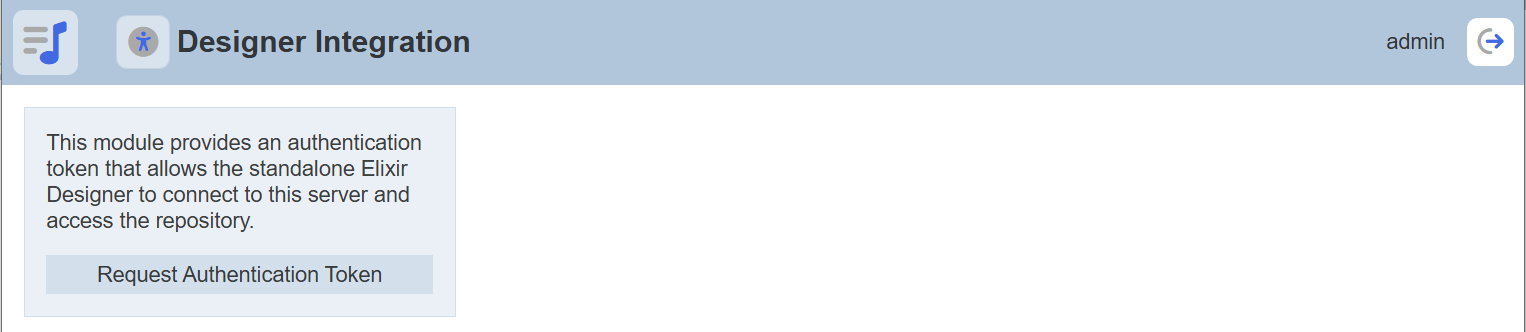
Open the Designer Integration module in Ambience.
-
Click Request Authentication Token.
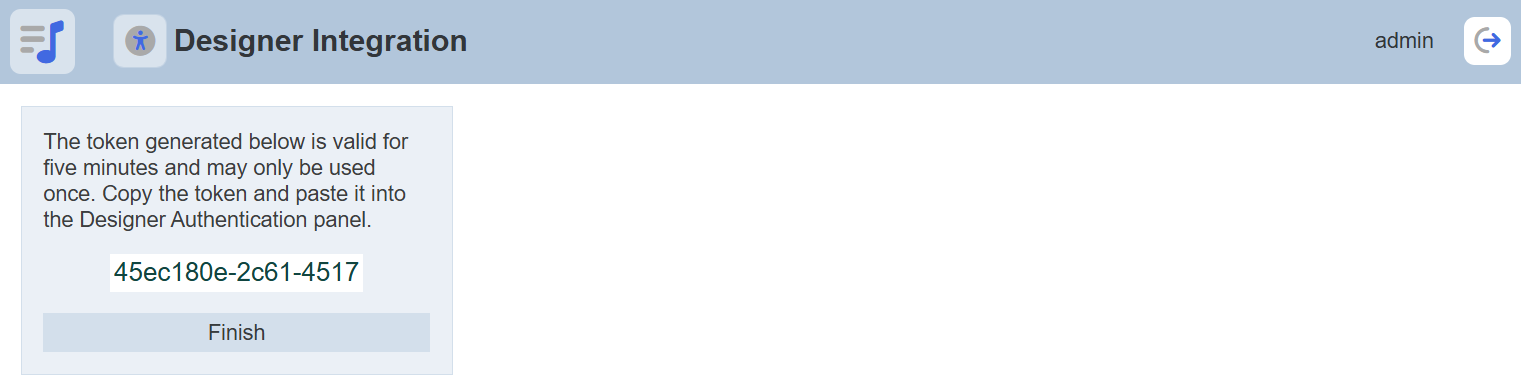
Ambience generates a token and displays it on screen. The token is valid for five minutes or until first use — whichever comes first. Once redeemed by the Designer, the server deletes it immediately.
-
Copy the token — you must paste it into the Designer before it expires.
-
Click Finish to reset the page, ready to generate another token when needed.
Security note: A token grants full access to Ambience as your user account and is visible on screen. Do not share tokens or paste them into unsecured channels. If a token is exposed before use, click Finish and generate a new one — the previous token will expire within five minutes regardless.
Use the token in Designer
After copying the token from the Designer Integration page, complete the connection in the Elixir Designer.
Steps
- Open the Elixir Designer and click the Connect button in the toolbar.
A connection dialog appears showing the server address (for example, *Connect to http://localhost:1740*).
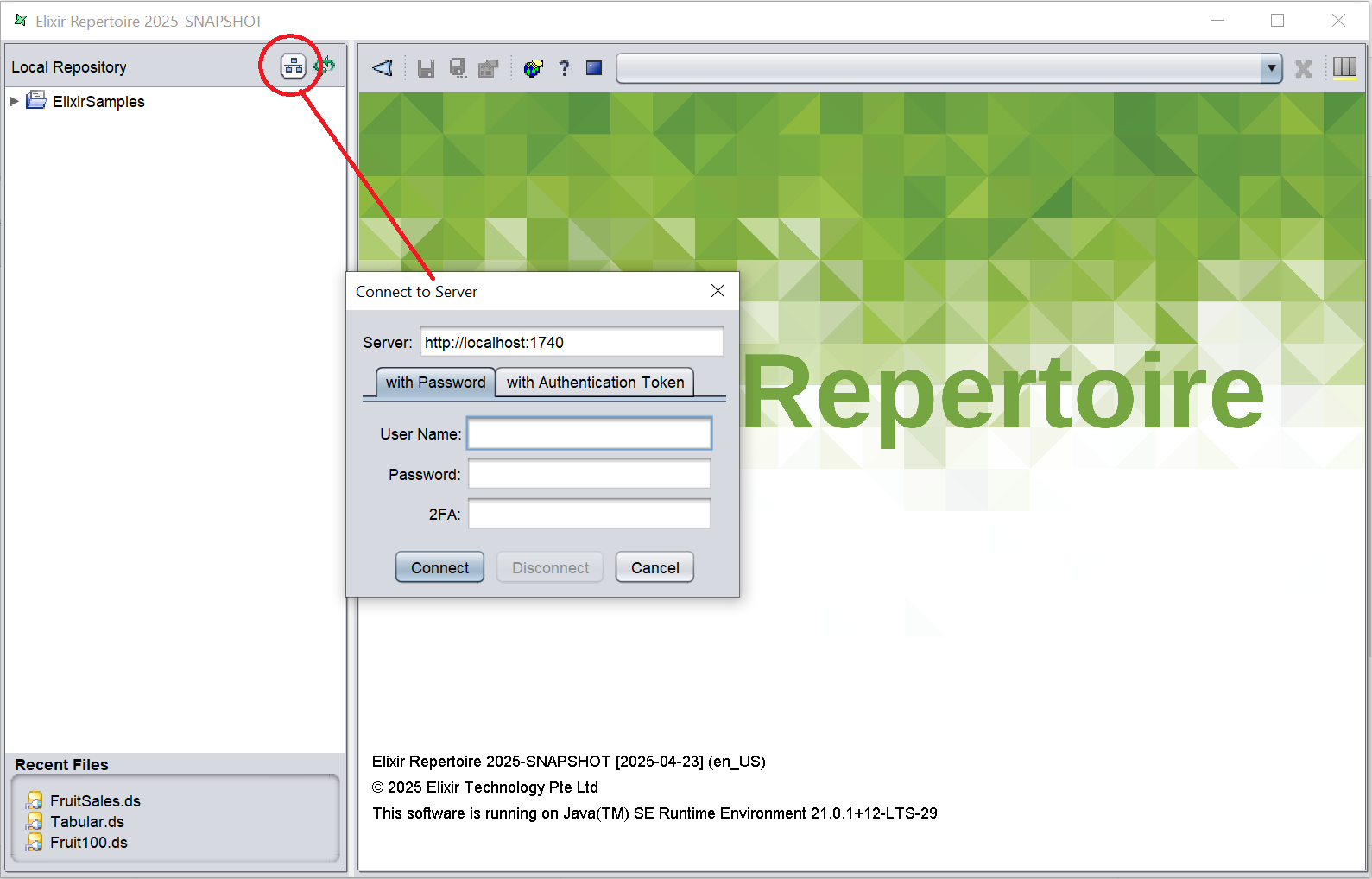
- Select the with Authentication Token tab.
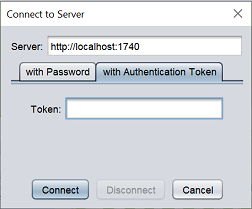
- Paste the token into the field and click Connect.
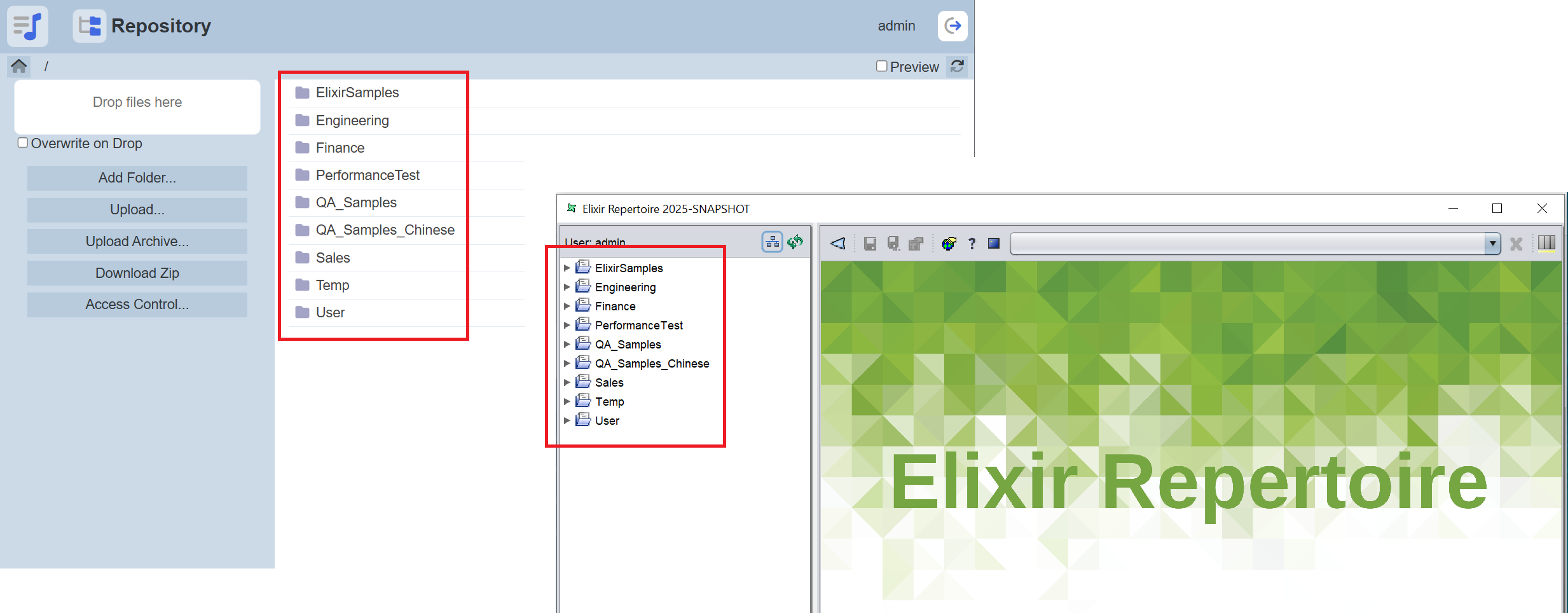
The Designer authenticates using your Ambience account and the repository content appears in the Designer workspace.
Note: A token is deleted by the server as soon as it is used. If the connection fails, return to Ambience and generate a new token.
The folders and files visible in the Designer after connecting depend on the roles and privileges of the Ambience account that generated the token.
Troubleshooting
| What you see | Likely cause | What to do |
|---|---|---|
| Designer cannot connect; no error shown | Token expired (five-minute limit passed) | Return to Ambience and generate a new token |
| “Token invalid” or authentication failure in Designer | Token was already used, or was copied incorrectly | Return to Ambience and generate a new token; copy the full token without trailing spaces |
| Connection refused | Wrong server address entered in Designer | Verify the server URL matches your Ambience deployment address |
| Designer connects but shows fewer items than expected | Token was generated by an account with limited privileges | Ensure the correct Ambience account generated the token, or contact your administrator |