
Launching Repertoire
Launch Repertoire on Windows
Use the following steps to launch Repertoire on Windows:
-
Go to Repertoire root directory, then to the “bin” folder.
-
To launch Repertoire:
-
Double click on the “run-server.bat” file for Windows
-
Execute “run-server” in terminal window
-
-
For Windows, if this is the first time you launch Repertoire, a dialog will appear.
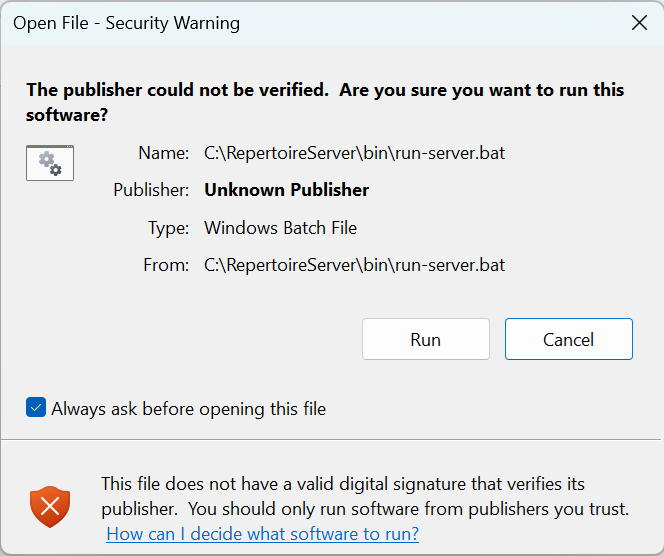
The “Always ask before opening this file” checkbox is checked by default, which means this dialog box will only appear once and will launch the Repertoire without prompting. If you wish to have the dialog box to appear each time Repertoire is launched, uncheck the “Always ask before opening this file”. Click on “Run” button at the bottom.
-
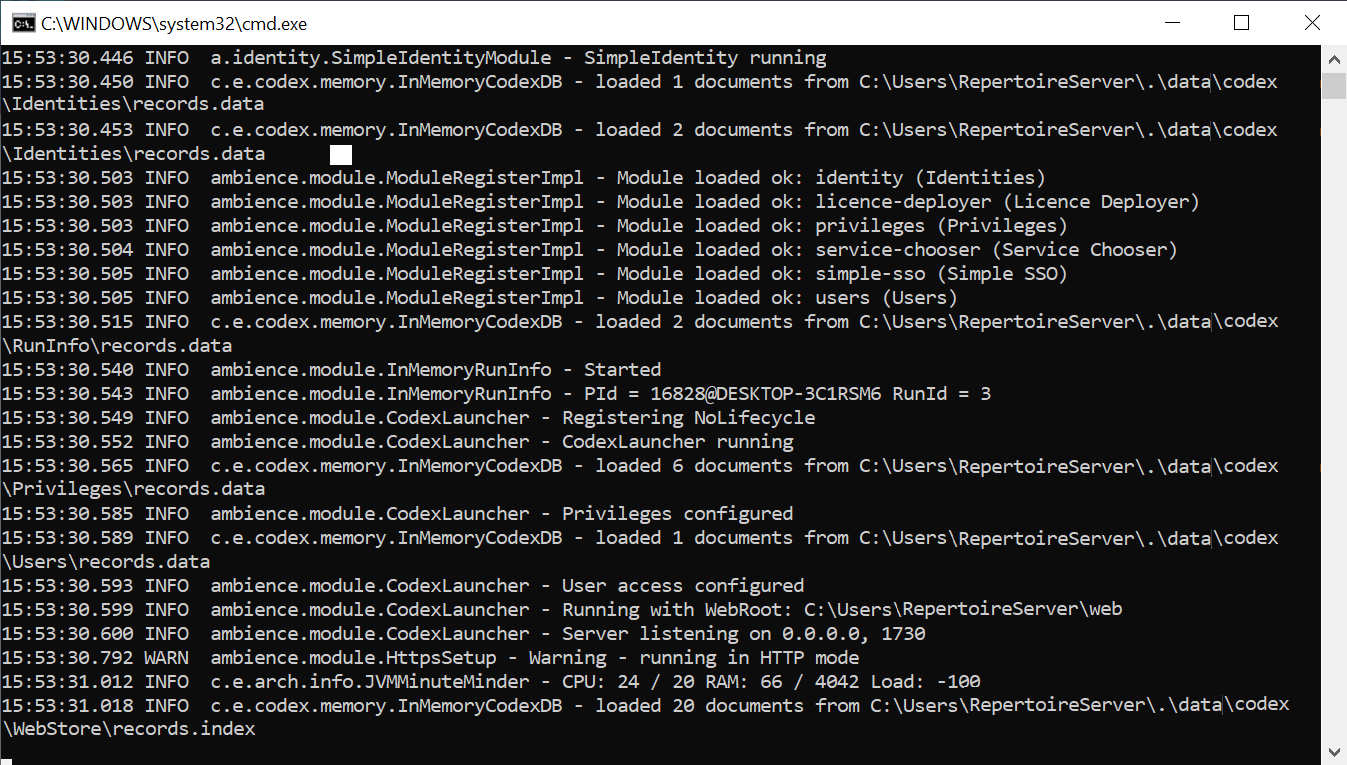
A command window will appear. DO NOT close this command window.
-
Check the command window for any error messages. After a few seconds, you will see a message “ambience.module.CodexLauncher – Server listening on 0.0.0.0, 1730”.
-
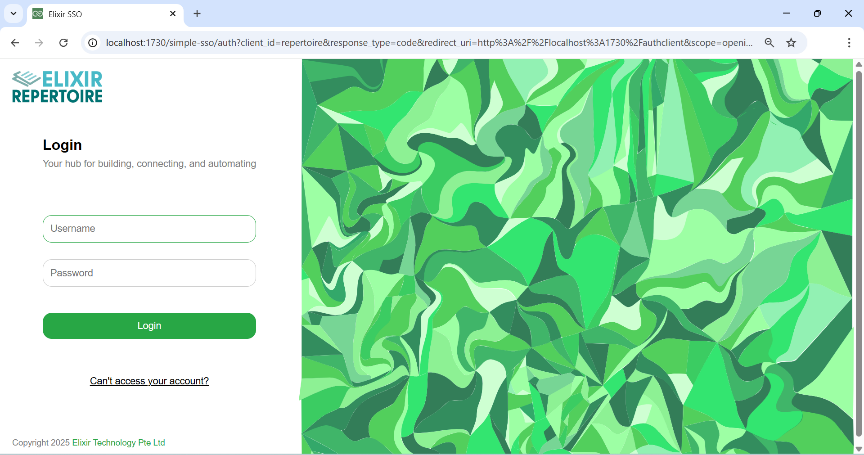
Open a browser, key in “localhost:1730” on the address bar and hit the “Enter” key.
-
The Elixir Repertoire login page will appear.
Launch Repertoire on Ubuntu
Use the following steps to launch Repertoire on Ubuntu:
-
In the terminal window, navigate to the Repertoire root directory, then to the “bin” folder.
-
In the terminal window, execute the command to launch Repertoire:
./run-server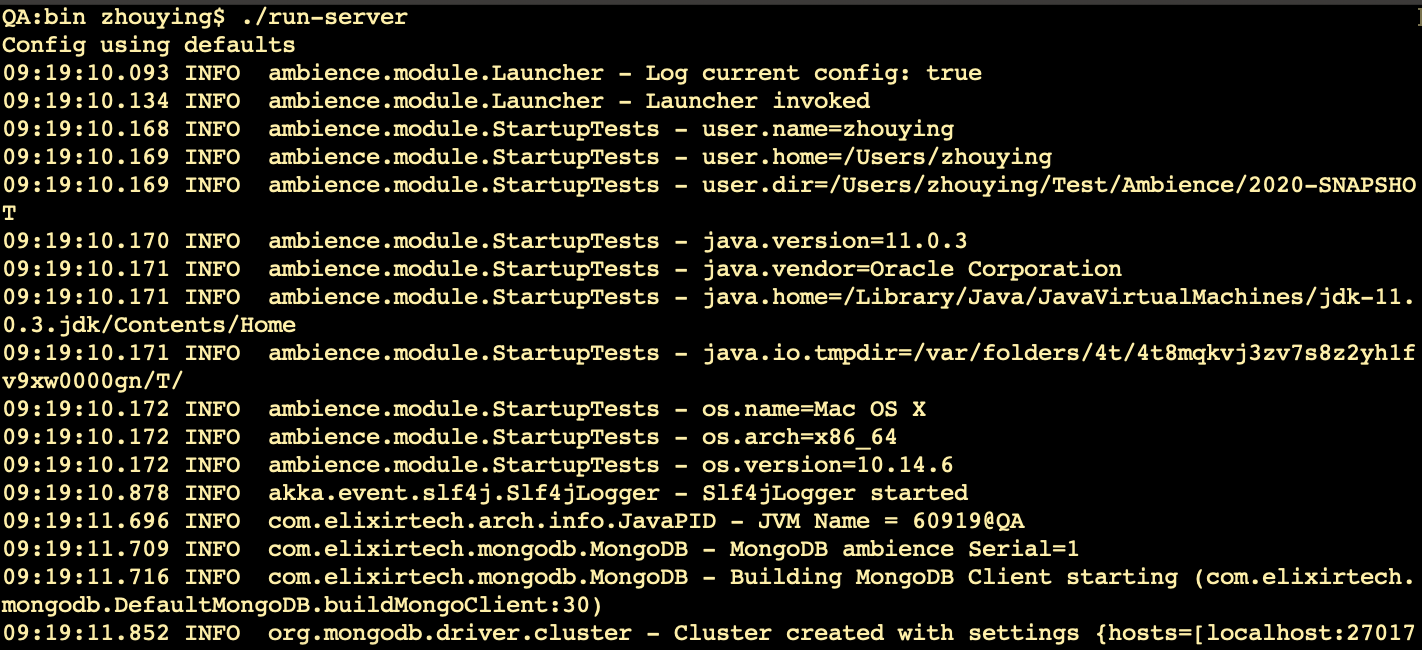
-
Open a browser, key in “localhost:1730” on the address bar and hit the “Enter” key.
-
The Elixir Repertoire login page will appear.
Launch Repertoire on macOS
Use the following steps to launch Repertoire on macOS:
-
In the terminal window, navigate to the Repertoire root directory, then to the “bin” folder.
-
In the terminal window, execute the command
./run-server -
Open a browser, key in “localhost:1730” on the address bar and hit the “Enter” key.
-
The Elixir Repertoire login page will appear.
Login
By default, the Repertoire has a super user “admin”. Use the following steps to log into Repertoire:
-
After launching Repertoire, the log-in page will appear.
-
To log into Repertoire, key in the following:
-
Username: admin
-
Password: sa
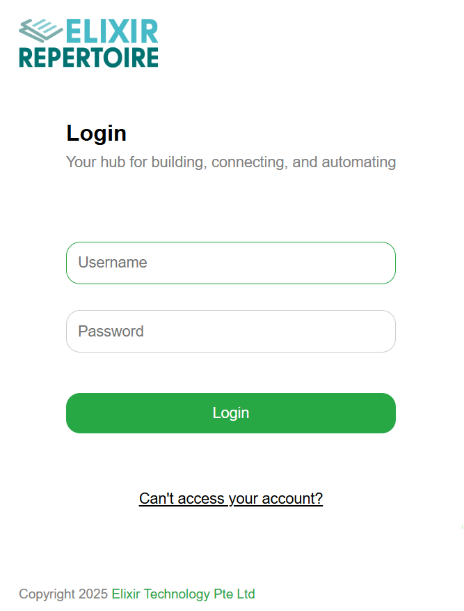
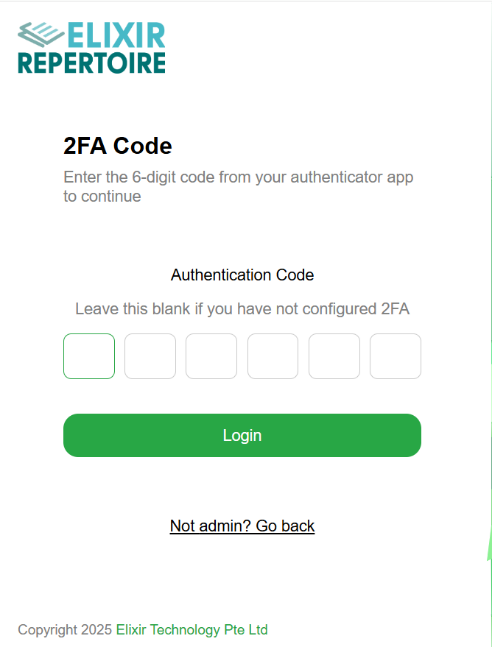
If 2FA has not been enabled, the 2FA Code will not appear after the log-in page. Refer to the Admin Guide on how to enable 2FA. If the user has not set up the 2FA yet, leaves the 2FA Code blank. Click on the “Login” button.
If the user has forgotten the password, click on the “Can’t access your account?” link at the bottom right. A dialog box will appear, prompting the user to enter the user’s username.
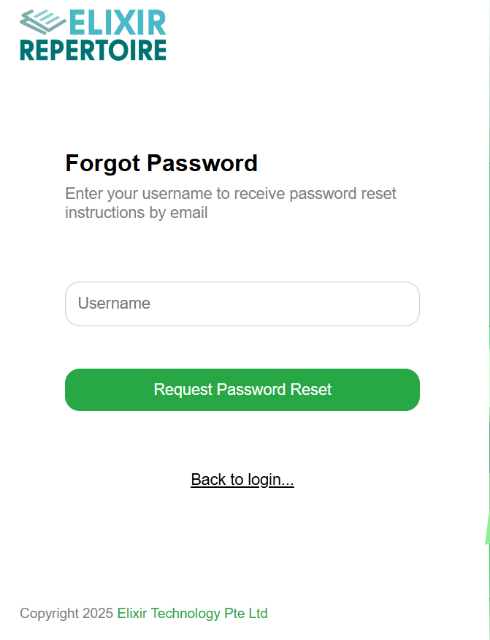
Click on the “Request Password Reset” button and the new password will be sent to the user’s email along with a notification. To abort this action, click on the “Back to login…” link at the bottom right.

-
-
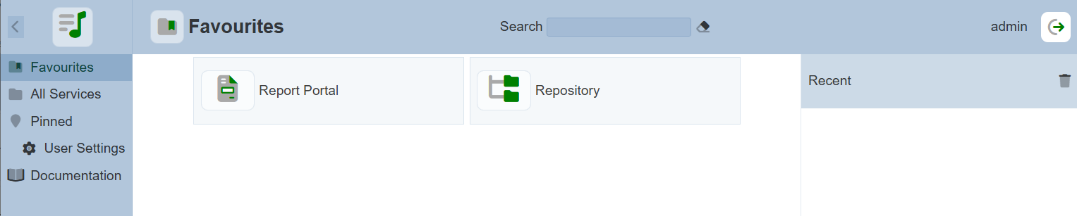
Click on the “Login” button. Upon login, the “Service Chooser” screen will appear with default modules in the “Favourites” options.
-
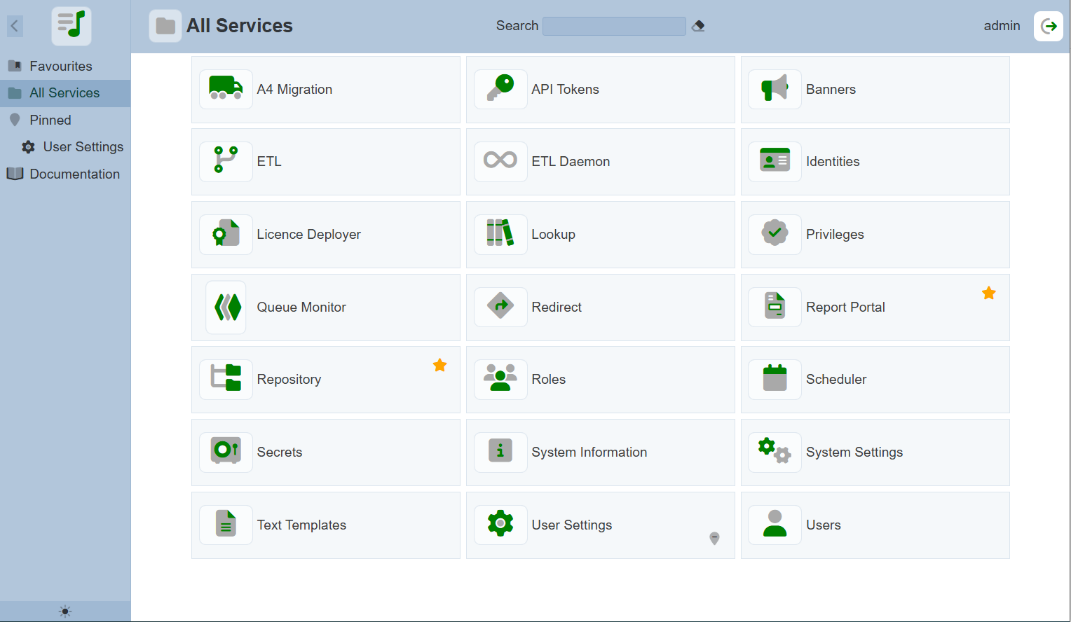
Click on the “All Services” option in the left panel to display the list of available modules in the right panel.
-
If the licence in Repertoire is the minimal licence, the right panel will display the set of modules that are allowed by the minimal licence. Contact our representatives for the new licence if the current licence expires.
Logout
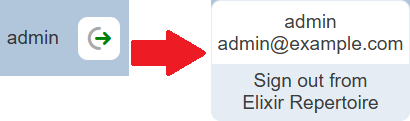
To log out of Repertoire, click on the “Profile” icon on the upper right corner of the page. A dialog box will appear. Click on the “Sign out from Elixir Repertoire” portion to log out of Repertoire.
Repertoire Interface
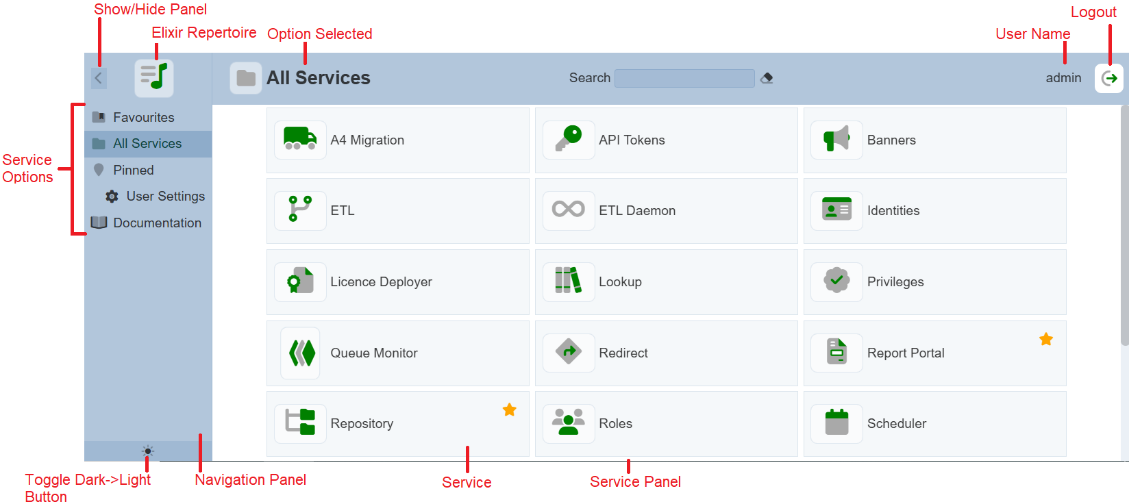
This section briefly describes the interface of the Repertoire “Service Chooser” page. Upon login into Repertoire, you will see the “Service Chooser” page. This page will display all the modules that are currently available.
| Item | Description |
|---|---|
| Navigation Panel | Consists of three parts: - At the top – Show/Hide button and Elixir Repertoire logo - At the centre – List of service options - At the bottom – Toggle Dark/Light mode button |
| Show/Hide button | Expand or collapse the navigation panel. By default, the navigation panel is shown (expanded). If collapsed, the navigation panel shows only the icons of the service options. 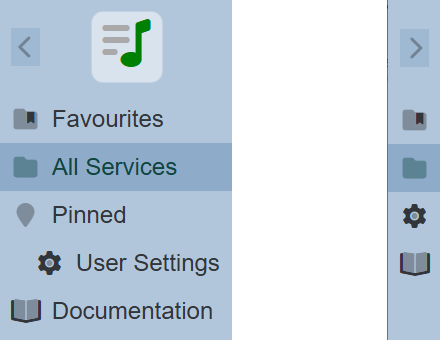 |
| Elixir Repertoire | The Elixir Repertoire logo allows user to return to the Favourites option from any page the user has navigation to. |
| Service Options | Any option selected in this panel will have its content displayed in the Content Panel. |
| Toggle Dark/Light button | Allows user to toggle between light and dark mode. By default, light mode is used. 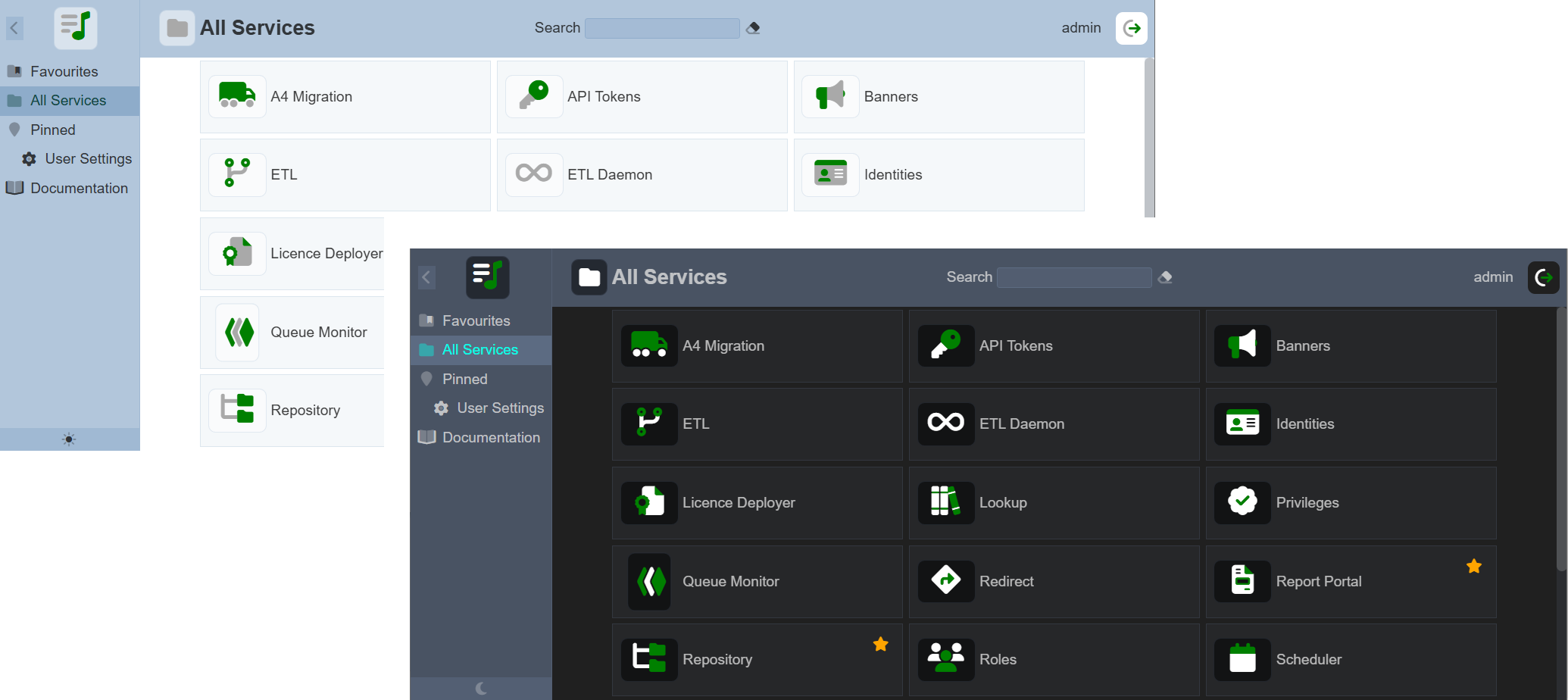 |
| Content Panel | Displays the content of the option selected in the Navigation Panel or any other page navigation to. When the “All Services” option is selected, the services available to the user will be displayed |
| Logout | When clicked upon, a pop-up will appear. Displaying the user’s profile at the top and the logout option below. Click on “Sign out from Elixir Repertoire” to log out of Repertoire. |