
Report Generation
It is often required to generate reports, either an ad-hoc report or a report at a particular day or time of the month, every month. For both cases, the report can be generated via the Repository module, manually. But to generate a report month after month manually can be tedious and a repetitive task. This job can be automated using ETL chainset and a scheduler. The following sections describe how to generate a report manually and how to automate a report to run monthly.
Manual Report Generation
A report can be generated manually via the Repository module. The Repository module stores files, such as DocX and RML report templates and datasources which are used in report generation. The following sections describes the above steps.
Upload Report Template and Datasource
To generate a report, a report template (either a DocX or RML) file and a datasource are required. Use the following steps to upload the required files onto the repository:
-
From the “Service Chooser” page, select “Repository” in the right panel.
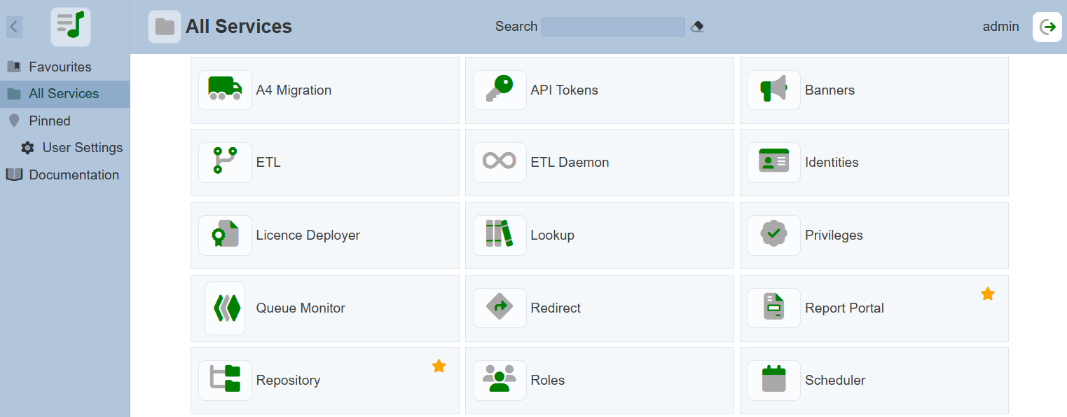
-
The “Repository” page will appear.
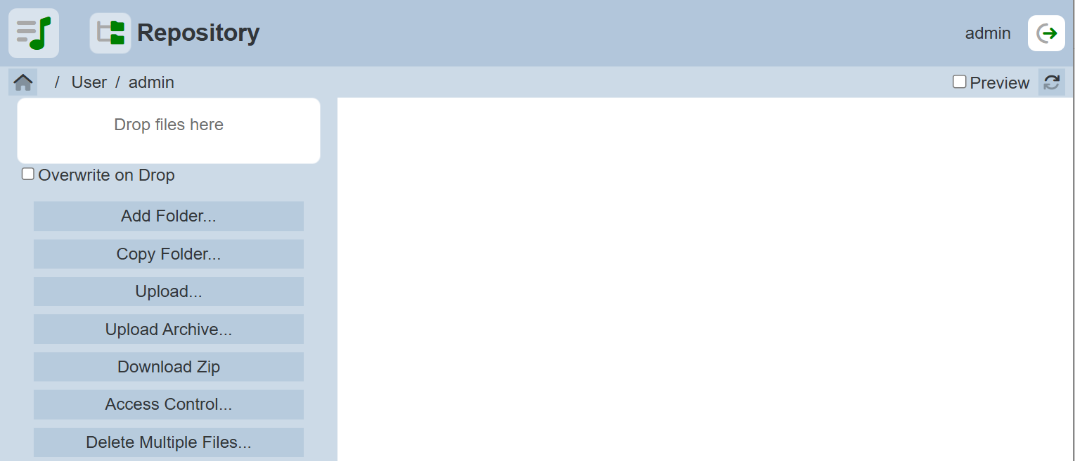
-
Navigate to the desired location in the repository.
-
If a new folder is required, click on the “Add Folder…” button on the left panel. The “Add Folder” dialog box will appear.
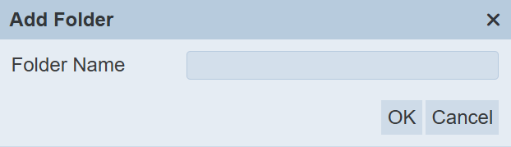
-
Key in a unique name for the new folder and click on the “OK” button.
-
A message will appear once the folder is added. If the name already exist, an error message will appear.


-
From the file explorer, select the desired file and drop the file onto the “Drop files here” box in the repository.
-
Once the file is deposited into the repository, it will appear in the Content Panel. Select the file and the available actions will appear in left panel.
Render Reports
To generate a report manually using the repository, the following steps are required:
-
In the Repository module, navigate to the location of the report template.
-
Select the desired report template file.
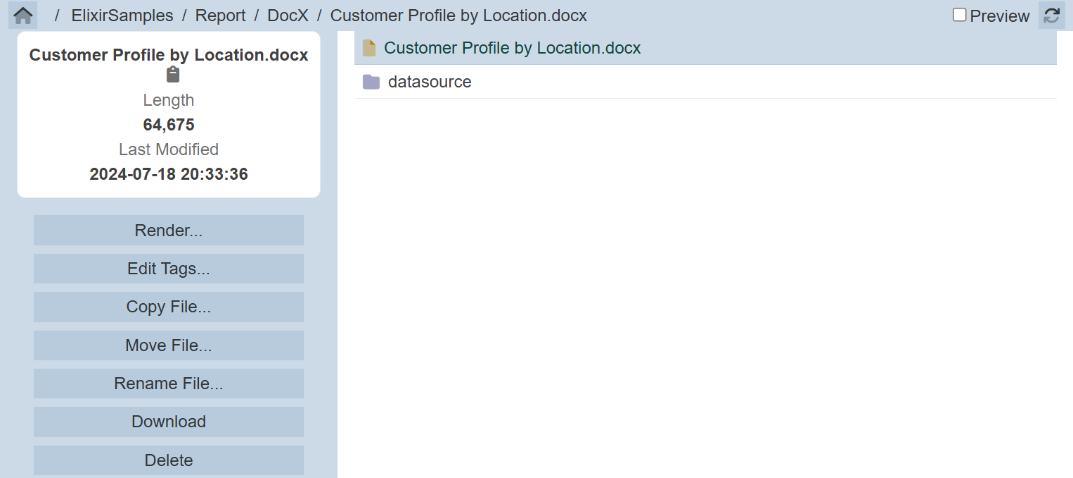
-
On the left panel, click on the “Render” button to generate the report.
-
The DocX Report Engine page will appear.
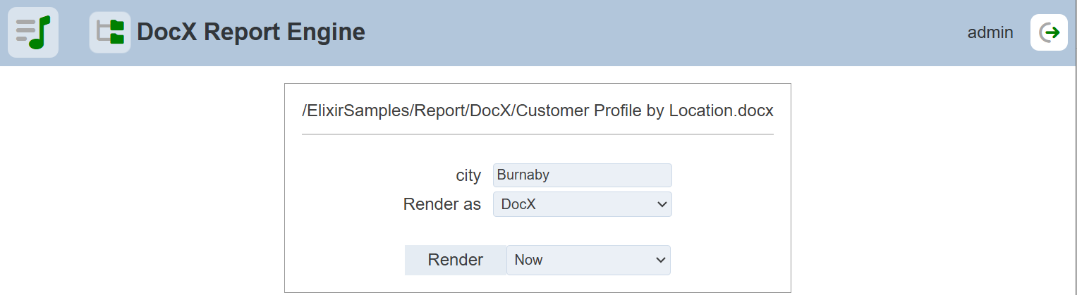
If a RML file is selected, the RML Report Engine page will appear.
-
Select the desired parameter and output format.
-
You can opt to render the immediately or select a pre-defined time to run the report from the drop-down list on the right of the “Render” button. After selecting the option, click on the “Render” button.
-
Depending on the selection, the report will be generated now or at the pre-selected timing.