
Checklist Sections
The Checklist Section panel contains of a top row and a lower panel that lists the sections for the checklist.
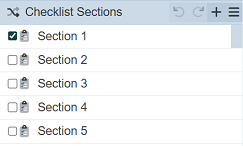
The top row consists of several icons and the title of the panel.

| Icon | Description |
|---|---|
Invert Checkboxes  |
This icon when clicked reverse the selection of the sections in the list. |
Undo  |
When clicked, undo the previous action. This icon will not appear if there is no action to undo. |
Redo  |
When clicked, undo the previous action. This icon will not appear if there is no action to redo. |
Add  |
Allows user to add a new section. |
More Actions  |
This icon when clicked, displays a list of available actions. If no section is selected, there will be less available action. If a section is selected, more available actions will appear. 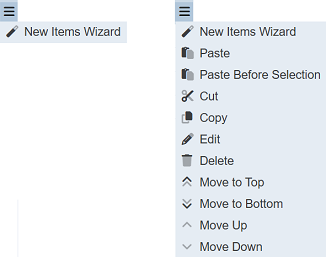 |
Add
A section can be added into the checklist either using the wizard in the “More Action” list or using the “+” icon.
Using Add Icon
To add a new section, click on the “+” icon in the top row. A “Add Checklist Section” dialog box will appear.
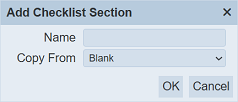
| Field | Description | Mandatory | Input Type | Constraints | Default Value |
|---|---|---|---|---|---|
| Name | Name assigned to the checklist section. | Y | Text field | Any text. The value must not exist in the list of page names. The value is case-sensitive. |
Empty string |
| Copy From | Indicates what template the section would be based on. Selecting “Blank Page” results in using a blank canvass as a starting point while selecting an existing section would result in having the selected section as the starting template. |
Y | Drop-down list | One value can be selected. Options are: - “Blank Page” - Names of all sections in the current checklist |
“Blank Page” |
In the “Name” field, enter an unique name for the new checklist. If this field is left empty or the name already exist, the relevant error message will appear when attempt to sve the section.


In the “Copy From” field, select either “Blank” or any other existing sections from the drop-down list.
Click on the “OK” button to create the new section. Too abort, click on the “Cancel” button.
Using Wizard
To add a new section using the wizard, click on the “More Actions” icon in the top row and select “New Checklist Wizard” option.
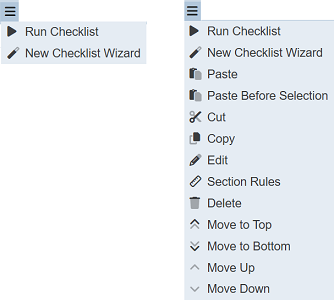
The “New Checklist Section Wizard” dialog box will appear.
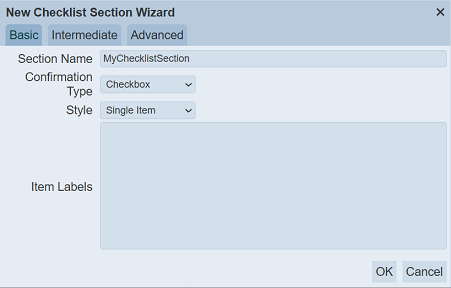
Fill in the required fields and click on the “OK” button to create the new checklist. Refer to Wizard for more details.
Edit
To edit a section, select the checkbox next to the desired section, click on the “More Actions” icon and select the “Edit” option.
The “Edit Checklist Section” dialog box will appear.

Edit the name of the section as desired. Do note that the name must be unique. Click on the “OK” button to save the change.
Delete
To delete a section, select the checkbox next to the desired section, click on the icon and select the “Delete” option. The selected section will be deleted from the Checklist Section panel.
Copy
To copy a section, select the checkbox next to the desired section, click on the icon and select the “Copy” option. The selected section will be added to clipboard.
Paste/Paste Before Selection
To paste a section, a section must be copied prior.
Click on the icon and select the “Paste” or “Paste Before Selection” option. The first option paste the copied section at the end of the list.
The second option pastes the copied section before the selected section in the panel, if there are more than two sections in the panel. If there is only one section in the panel, the “Paste Before Selection” option will not appear.
Cut
To cut a section, select the checkbox next to the desired section, click on the icon and select the “Cut” option. This will remove the section from the list and add to clipboard.
User can use the “Paste” or “Paste Before Selection” to add the section that was cut.
Section Rules
This function allows user to set rules for the selected section, as to when and/or how the selected section will show or hide in the checklist. These section rules applies to all sections except for the topmost section in the list.
To access the rules, select the checkbox of the desired section, click on the [](images/moreActions.png) icon and select the “Section Rules” option. The “Section Rules” dialog box will appear.
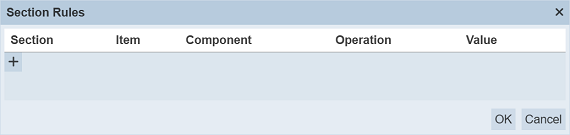
To set a new rule, click on the “+” icon under the “Section” column. A new row will appear. Each row is one rule.
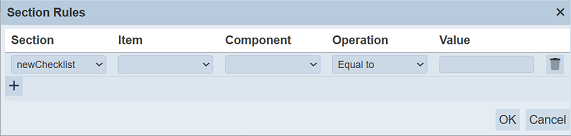
Select the desired section, item and component for define the field to check for from the drop-down lists. Select the required operation from the drop-down list under the “Operation” column. Under the “Value” column, select the desired value.
Click on the “OK” button to save te rule. Click on the “Cancel” button to abort. More than one rule can be set. Click on the “+” icon to add more rules.
To edit an existing rule, change the values in the row as desired and click on the “OK” button to save the changes.
To delete a rule, click on the  “Delete” icon on the left of the section. Click on the “OK” button to save the change.
Move To Top / Move To Bottom
These functions allows user to relocate one or multiple sections either to the top or bottom of the list.
To do so, select the desired section or sections, click on the icon and select the “Move To Top” to move the sections to the top of the list. To move to the bottom of the list, select the “Move To Bottom” option.
Move Up / Move Down
These function allows user to move a selected section up or down one level.
To do so, select the desired section, click on the icon and select the “Move Up” to move the section up one level in the list. To move the section down one level of the list, select the “Move Down” option.
Run Checklist
This function allows user to test run the checklist.
To do so, click on the icon and select the “Run Checklist” option.
If any error is detected, the relevant warning message will appear.
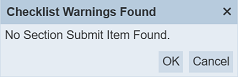
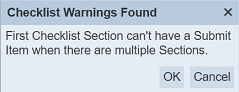
Click on the “OK” button to continue running the checklist. To abort, click on the “Cancel” button.
New Checklist Wizard
To add a new section using the wizard, click on the icon and select the “New Checklist Wizard” option. The “New Checklist Wizard” dialog box will appear.
Fill in the required fields and click on the “OK” button to create the new checklsit. Refer to Wizard for mre details.