
Checklists
Description
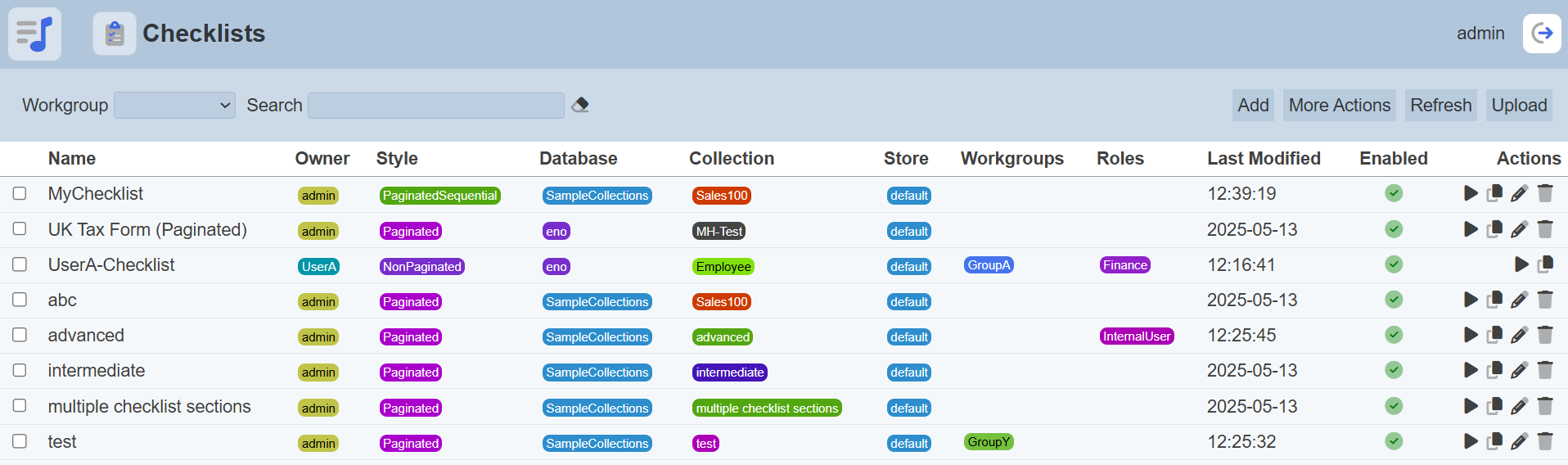
The Checklists module allows you to create, assign, and track checklists to enhance operational efficiency and support compliance with standard operating procedures.
It is ideal for managing routine inspections, maintenance activities, safety audits, and daily tasks across various buildings, operational zones, and assets.
A checklist can consist of several sections, each section consists a list of items. These items have components that allows user to check, select or input data, etc.
Module Interfaces
| Interface | Description | Required Privilege |
|---|---|---|
| Checklists | Allows Checklists access | mod-checklist |
| Checklists | Allows to edit checklist metadata (e.g., role access) | mod-checklist-edit |
| Checklists Designer | Allows Checklist Designer access | mod-checklist-designer |
Add
To add a checklist, start by clicking on the “Add” button on the upper right corner of the page.

The “Add Business Rules” dialog box will appear.
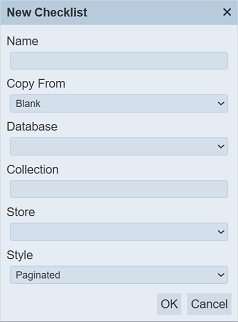
| Field | Description | Mandatory | Input Type | Constraints | Default Value |
|---|---|---|---|---|---|
| Name | Unique name assigned to the checklist. | Y | Text field | Any text (case-sensitive) | Empty string |
| Copy From | Indicates what template the checklist would be based on. Selecting “Blank” results in using a blank canvas as a starting point while selecting an existing checklist would result in having the selected checklist as the starting point. |
Y | Select | One value can be selected. Options are: - “Blank” - names of all enabled checklists the user currently has read access to |
“Blank” |
| Database | Selects the database to be used with the checklist. | Y | Select | Select from drop-down list | None |
| Collection | Selects the collection to be used with the checklist. | Y | Select | Select from drop-down list | None |
| Store | Selects the location of the collection to be stored. | Y | Select | One value can be selected. Options are: - default - default-large |
None |
| Style | Selects the the style of the checklist. | Y | Select | One value can be selected. Options are: - Paginated - Paginated Sequential - Non Paginated |
“Paginated” |
In the dialog box, key in an unique name for the new checklist in the “Name” field. It is case-sensitive. If the “Name” field is left empty or the name keyed in is already used, the relevant error message will appear when attempt to save the checklist.


Note that in copying another checklist, any change name to the checklist in the “Copy From” would not be applied to the new checklist after its creation. Copying does not link any of the checklists.
Select the desired database and collection from the “Database” and “Collection” fields from their respective drop-down lists. Select the desired location to store the information from the checklist in the “Store” field.
In the “Style” field, select the desired style of the checklist from the drop-down list.
Click on the “Save” button to create the new checklist and the “New Checklist Section Wizard” dialog box will appear to assist you to setup the checklist. See Checklist Section Wizard for more details.
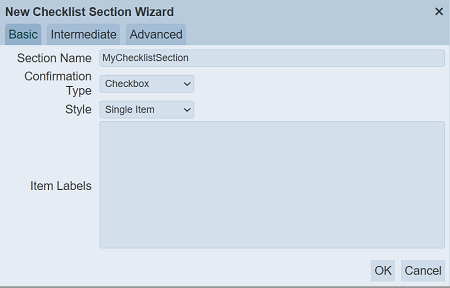
Clicking on the “Cancel” button aborts the action.
Do note that if an option is selected from the drop-down list for the “Workgroup” field at the top of the page, any checklist added to the management page will have the selected workgroup added to it. For example, if “Workgroup A” is selected, a new checklist “XYZ” is added. The “XYZ” will have “Workgroup A” added to its properties.
Refresh
After performing actions on the browser/tab, the list is reloaded to display the checklists. The manual “Refresh” button is available and is particularly useful if there are others making changes on the same page.
The “Refresh” button is found on the upper right corner of the page. Clicking on it reloads the list.
Upload
To upload one or more checklists, start by clicking on the “Upload” button on the upper right corner of the page.
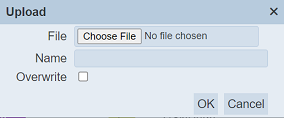
The “Upload” dialog box appears on the page.
Single File
Browse to the location of the file (<filename>.checklist.json) to be uploaded and set the “Name” field. By default, the “Name” field uses the name of the upload file. You can change it to an appropriate name if desired. If the file to be uploaded is to replace an existing checklist, select the “Overwrite” field. Do note that the “Name” field must be unique, or an error message will appear.
| Field | Description | Mandatory | Input Type | Constraints | Default Value |
|---|---|---|---|---|---|
| File | Browse to select file to be uploaded. | Y | “Choose File” button | Any text | Empty |
| Name | Unique name assigned to the file to be uploaded. When a file is specified in the above field, this field will automatically takes in the file name of the specified file. |
Y | Text field | Any text | Empty string |
| Overwrite | If selected, overwrites existing record. | N | Checkbox | Select or not selected | Not selected |
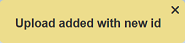
Click on the “OK” button to upload the selected file. Click on the “Cancel” button to abort the action. A message will appear after the file has been successfully uploaded.

Each checklist record has an ID. If ID of the record to be uploaded already exist, a new ID will be given to the newly uploaded checklist.
If the name of the checklist to be uploaded already exist or the file is not provided, the relevant error message will appear.
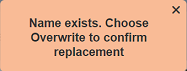

To overwrite the existing record, select the “Overwrite” field in the dialog box, then click on the “OK” button. A message will appear, informing that the overwrite uploading is successfully.

You can arrange/sort the list of checklists in ascending or descending order by clicking on the name of the desired field. By default, the list is sorted by the “Name” field in ascending order.
Zip File
Browse to the location of the zip file to be uploaded. The name of the checklists will be extracted from the zip file. Click on the “OK” button to upload the checklists. The “Upload Results” dialog box will display the results of the uploading.
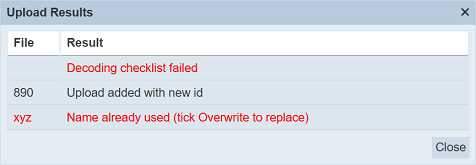
The result in black is uploaded successfully while those in red indicates upload failures with their relevant messages. Click on the “Close” button to close the dialog box.
Edit
To modify an existing checklist properties, click on the  “Edit” icon under the “Actions” column corresponding the desired checklist. If you are not the owner of the checklist, the icon will not appear.

The “Edit Checklist” dialog box will appear.
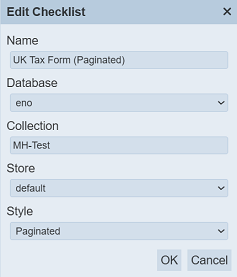
Edit as desired and click on the “Save” button to save the changes.
Open Checklist Designer
To open a checklist, simply click on the name of the desired checklist under the “Name” column. The Checklist Designer page will be displayed.
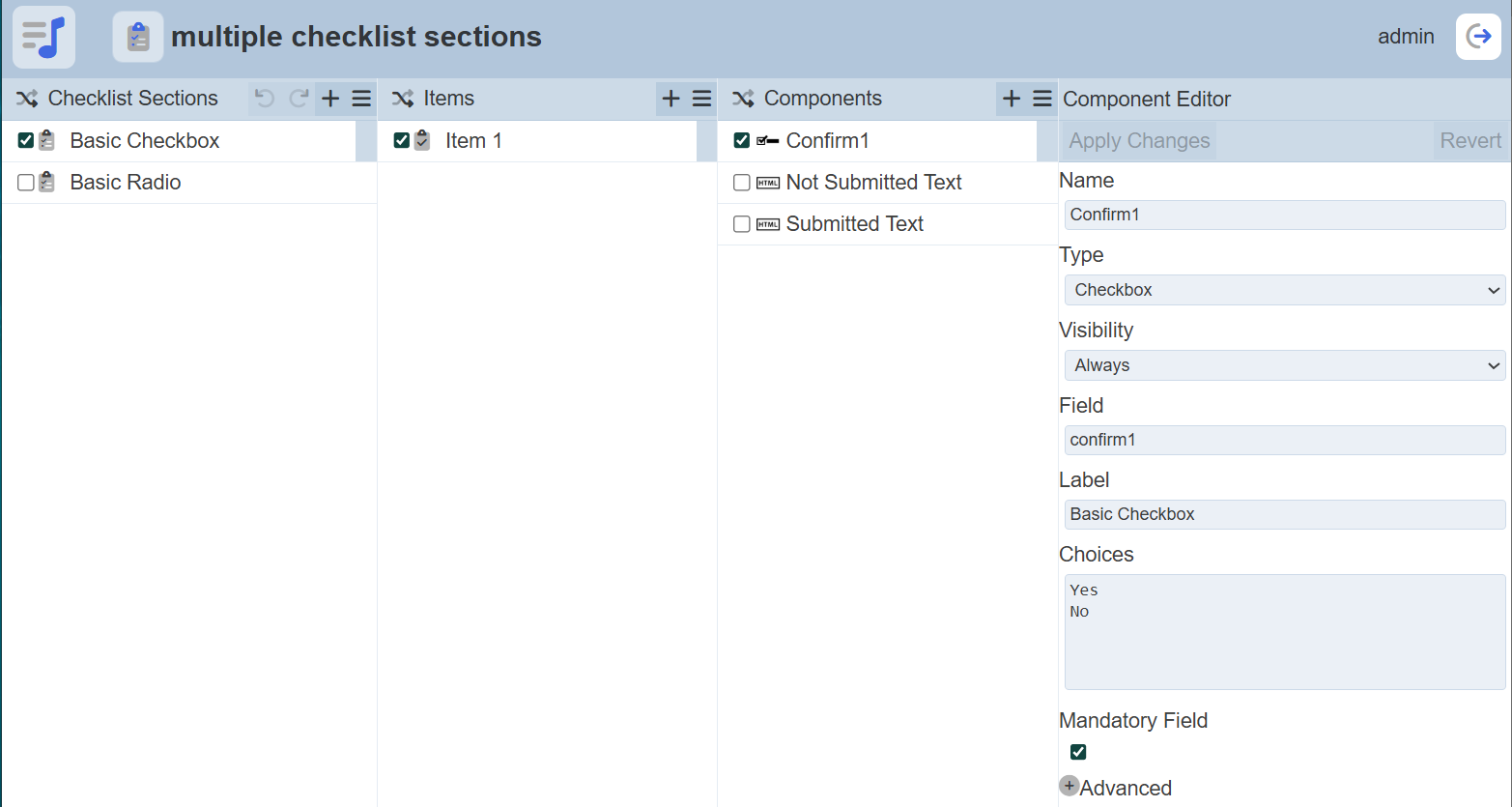
If the checklist has not been setup, the “New Checklist Section Wizard” will appear. See Checklist Section Wizard for more details.
In this Checklist Designer page, you can edit, add, delete fields and their data types, etc.
For more information on the Checklist Designer, see Checklist Designer.
Run Checklist
To run the checklist, click on the  “Run” icon under the “Actions” column corresponding the desired checklist.
The checklist will appear in another browser tab.
Copy URL
This funciton allows user to copy the URL of the checklist to be To copy the URL of the checklist, click on the  “Copy URL” icon under the “Actions” column corresponding the desired checklist.
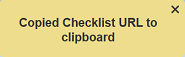
A message will appear once the URL is copied to the clipboard.
More Actions
This feature allows user to perform actions on multiple checklists at the same time.
When the “More Actions” button located at the upper right corner of the page is clicked, a list of available actions are displayed.
If no checklist is selected prior clicking the button, there will be fewer actions available. To select a checklist, select the checkbox next to the name of the record.
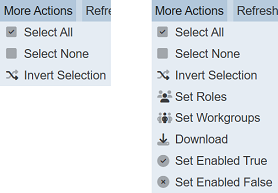
| Option | Description |
|---|---|
| Select All | Selects all checklists in the list. |
| Select None | Unselects all checklists. |
| Invert Selection | Inverts the current selection. That is, any checklists selected will be unselected and vice versa. |
| Set Roles | Selects the roles to be assigned to the checklists. |
| Set Workgroups | Selects the workgroups to be associated with the checklists. |
| Download | Downloads multiple checklists as a zip file. If only one checklist is selected, the selected checklist will be downloaded as a JSON file. |
| Set Enabled True | When selected, sets the selected checklists to enable. |
| Set Enabled False | When selected, sets the selected checklists to disable. |
Set Roles
To set the roles for the selected checklists, click on the “More Actions” button and select the “Set Roles” option. The “Set Roles” dialog box will appear.
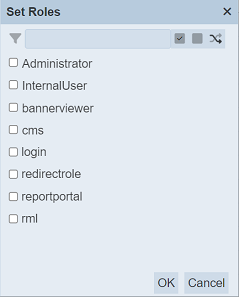
Select the roles to have access to the checklist by selecting the checkboxes. Alternatively, you can search for the desired role by keying in the keyword in the search function at the top of the dialog box. You can also choose to select all, select none or invert selection by clicking on their respective icons on the right of the search function.
Click on the “OK” button to save the changes or click on the “Cancel” button to abort the action.
Set Workgroups
To set the workgroups to be associated with the selected checklists, click on the “More Actions” button and select the “Set Workgroups” option. The “Set Workgroups” dialog box will appear.
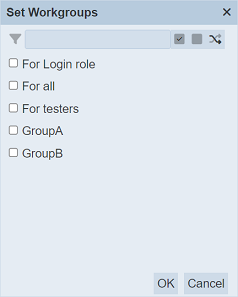
Select the workgroups to be associated with the checklist by selecting the checkboxes. Alternatively, you can search for the desired workgroup by keying in the keyword in the search function at the top of the dialog box. You can also choose to select all, select none or invert selection by clicking on their respective icons on the right of the search function.
Click on the “OK” button to save the changes or click on the “Cancel” button to abort the action.
Download
This function allows you to download an existing checklist or multiple checklists in zip file.
To download, select the desired checklists. Click on the “More Actions” button and select the “Download” option.
If only one checklist is selected, the downloaded record has a filename of <filename>.checklist.json.
If more than one checklist are selected prior, the “Download” dialog box will appear.
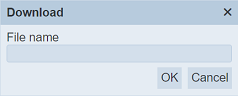
Key in the desired name for the zip file and click on the “OK” button. The selected checklists will be downloaded as a zip file with the filename provided earlier. The individual checklist in the zip file will have the filename format as mentioned above.
Set Enable / Disable
To enable or disable the checklists, click on the “More Actions” button and select the “Set Enable True” or “Set Enable False” option respectively.
The selected checklists will be enabled or disabled as selected.
An enabled checklist is represented with a green tick under the “Enabled” column, while a disabled checklist is represented with a red cross.
Delete
Deleting a checklist removes it from the list.
To delete an existing checklist from Ambience, click on the  “Delete” icon under the “Actions” column corresponding the desired checklist.
If you are not the owner of the checklist, the icon will not appear.
There is an option to undo the deletion. A notification with an “Undo” button appears right after clicking on the “Delete” icon.
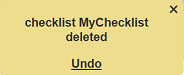
Upon clicking on the “Undo” button, the deleted checklist is restored and is added back to the list. Do note that the notification will disappear after a few seconds.
Workgroup
The “Workgroup” field at the top left corner of the page allows you to filter the checklists associated with the selected workgroup.
Simply select the desired workgroup from the drop-down list and the checklist associated with the selected workgroup will be displayed.
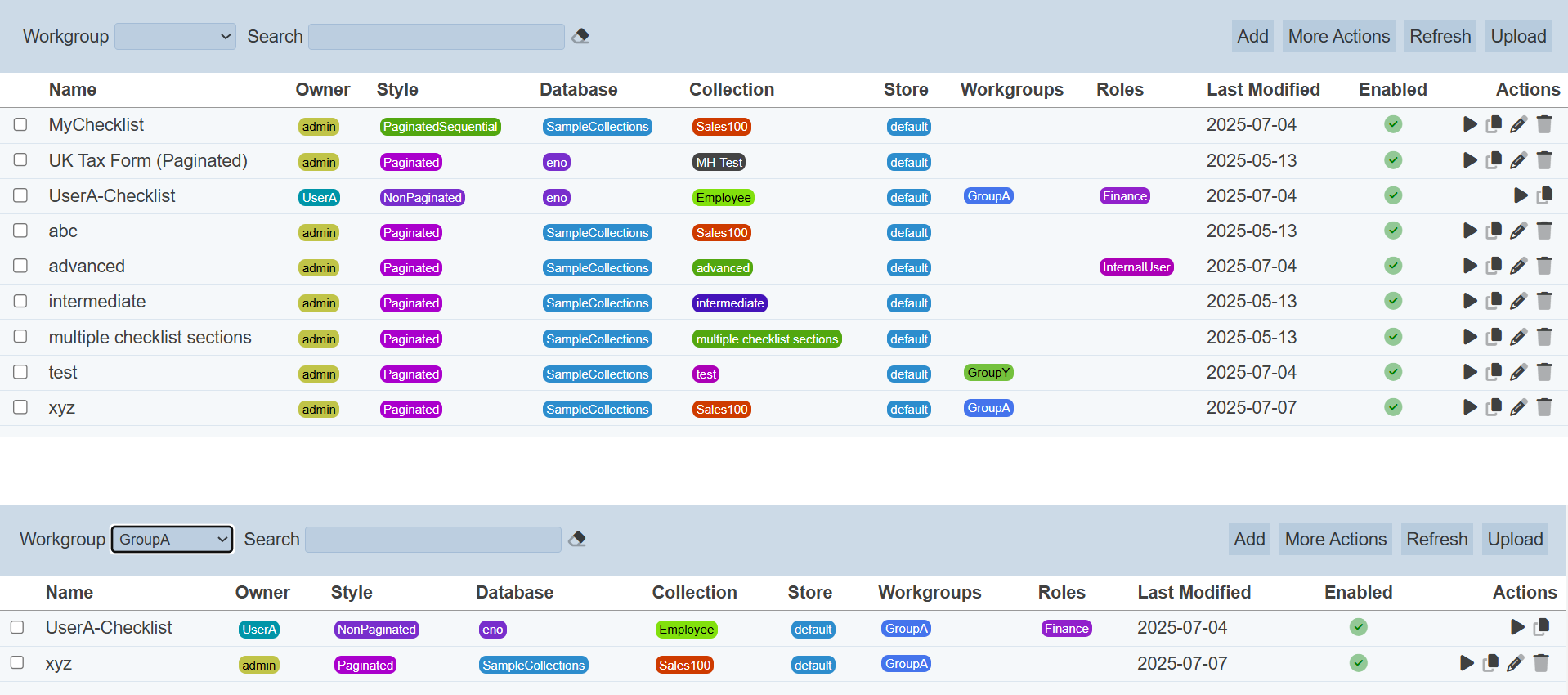
Do note that if no workgroup is created in the Workgroups module, the “Workgroup” field at the top left of the page will not appear.
Search
The search bar appears on the upper left corner of the page.

This provides an easy way to search through the list. It is case-insensitive and displays records that have the entered search value in any of the values of the fields below:
- Name
- Owner
- Style
- Database
- Collection
- Store
- Workgroups
- Roles
- Last Modified
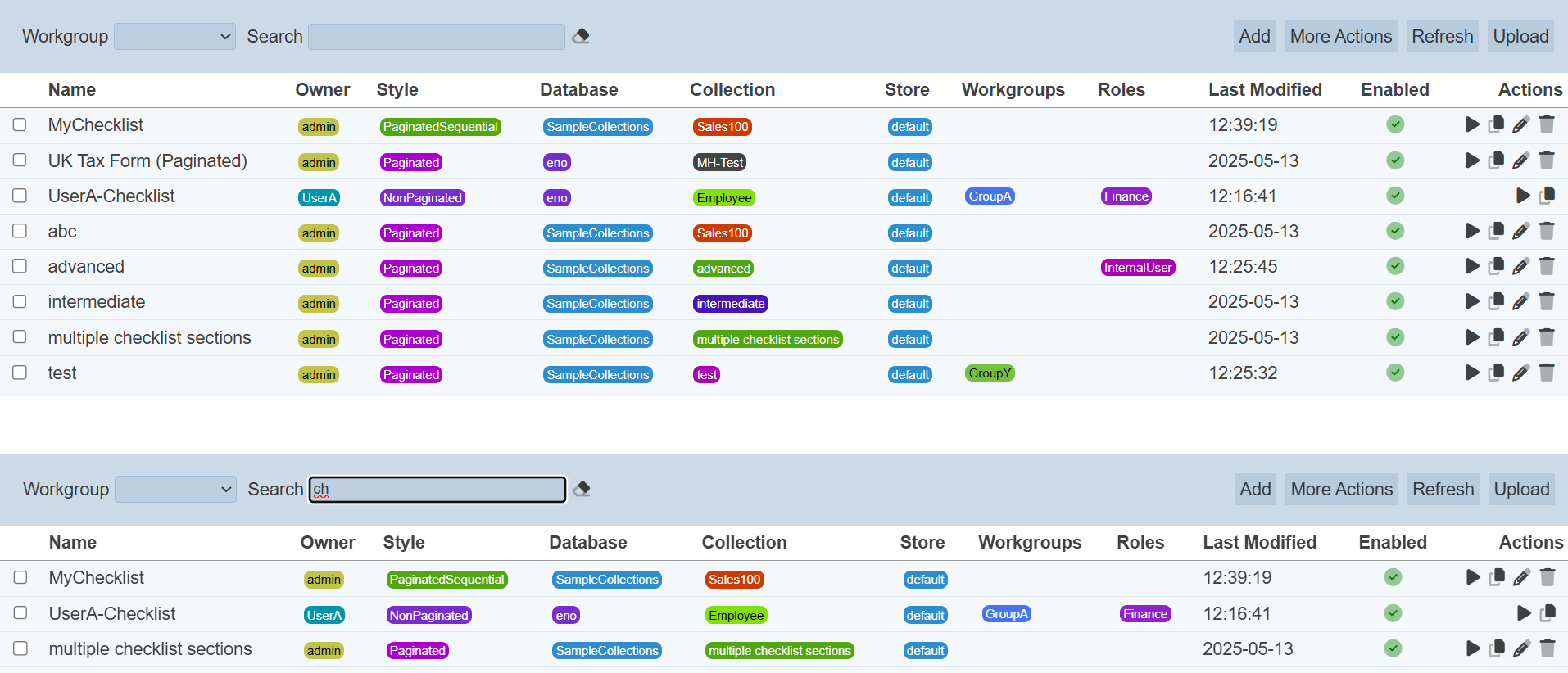
Alternatively, you can click on the any owner, workgroup, roles, etc., under their respective columns to aid the search for the checklists in the page.
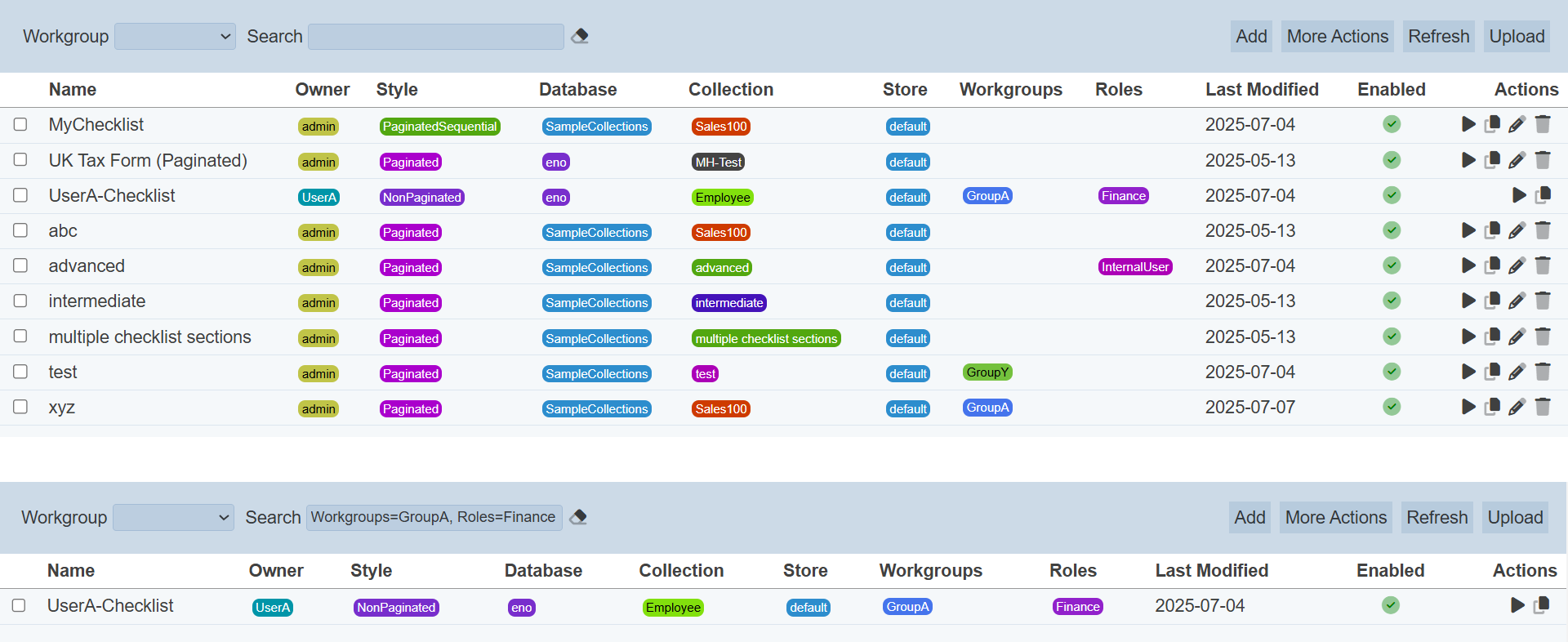
In the example above, checklist that is associated with workgroup “GroupA” and role “Finance” is shown.
These two search methods can be combined together, with each criteria separated by a comma.