
Configure Ambience
Horizontal Scalability – Nginx
Horizontal scalability is the ability to increase capacity by connecting multiple hardware or software entities so that they work as a single logical unit. This section describes the steps to set up horizontal scalability (two web servers and more) for Ambience server.
-
Nginx server has been created and configured and running. Its configuration is as follows:
The path for the configuration for Ubuntu is “etc/nginx/conf.d/nginx.conf”. Below is an example of the nginx.conf file. For Repertoire, change the port to 1730.
upstream backend { server xxx.xxx.xxx.xxx:1740; server xxx.xxx.xxx.xxx:1740; } server { server_name xxx.xxx.xxx.xxx; location / { proxy_redirect off; proxy_set_header X-Real-IP $remote_addr; proxy_set_header X-Forwarded-For $proxy_add_x_forwarded_for; proxy_set_header Host $http_host; proxy_pass http://backend; } } -
Minimum two or more software servers has been created and configured. Set the Nginx IP and port into each software server’s application.conf file.
... sso-server-baseurl = "http://"${host}":"${port} sso-client-baseurl = "http://"${host}":"${port} elixirtech.simple-identity.client-landing-page = "http://"${host}":"${port}"/index.html" ... ambience.web {url = "http://"${host}":"${port} ...} -
Open two terminals or more on different machines.
-
Go to folder where the “elx-stub.jar” file is and run the following command for each terminal:
java -Dvisualvm.display.name=Ambience -Djava.awt.headless=true
-Dlogback.configurationFile=etc/logback.xml -jar elx-stub.jar
ambience.module.Launcher
The software servers are successfully brought up.
-
Open a browser and set the URL as per “ambience.web” configured in step 2. You should be able to open the software portal.
-
Perform some actions in the browser, such as, edit a dashboard, refresh a page, etc.
-
Monitor each software server’s log in the Event Logs module. The log for each terminal shows the log in rotation between one and the others. (For Ambience only).
Deployment
Simple Deployment
For simple deployment, a single host is used. Below is an example using Ambience.
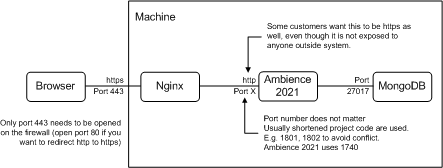
Below is a sample Nginx configuration.
server {
listen 442 ssl;
server_name bladnoch.elixirtech.com;
ssl on;
ssl_Certificate /opt/cert/elixirtech.pem;
ssl_certificate_key /opt/cert/elixirtech.key;
location / {
proxy_pass http://localhost:8080/;
}
}
In this case, the internal port is set to 8080.
High Availability Deployment
High Availability (HA) refers to systems that are durable and likely to operate continuously without failure for a long time. If the system gets split, one side will have the majority of the machines, and that side will continue until the problem is resolved. Taking Ambience for example, the simplest HA setup will be two Ambience servers and a MongoDB server with a load balancer. A full HA setup will be two+ Ambience server and one MongoDB replica set with load balancers. A load balancer (typically Nginx) is on a separate machine. The diagram below shows a HA deployment.
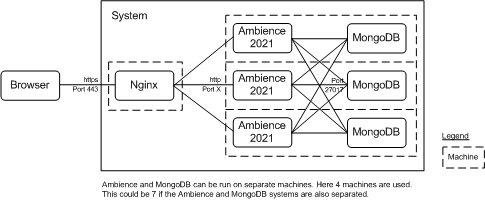
The Ambience and MongoDB can be run on separate machines. To avoid the single point of failure, another Nginx machine can be added and the DNA name server can be setup with an A record for each Nginx machine and a short TTL. For cost saving, the three MongoDB servers can be replaced by two with one lightweight “Arbiter”, which does not store data, but acts as the third machine in the case of a split. Docker can be used to simplify deployment of these machines, and higher-level tools (such as, Docker Compose, Kubernetes, etc.) can be used to deploy an entire set of machine configurations at once. If the management of the deployment becomes tedious, then it might be worth investing that time to use these tools.
Specify Number of Threads (JVM)
The default minimum and maximum number of threads are set to four in Ambience. You can override the default minimum and maximum number of threads using these values in the “run-server” script in the “/bin” folder: -Dscala.concurrent.cntent.minThreads=X -Dscala.concurrent.cntent.maxThreads=Y where X and Y are the new minimum and maximum values respectively. Note that the “threads” mentioned here are not hardware threads (which are fixed by the processor design, usually 1 core = 2 threads) but software threads, managed by the JVM. The ideal values will depend on the load, i.e., number of clients, scheduled jobs, etc. Editing these values may help resolve certain blocking issues when mixing composites and reports (old synchronous code) with new asynchronous code.
Other Configurations
You can use the application configuration file (*application.conf*) to configure other settings, such as, upload file size, disabling ETL logs, etc. Refer to Application Config File Guide for more information.