
Import Licence
When the Ambience is initially installed, it comes with a default licence. This default licence allows a minimal set of modules and does not have an expiration date. To access to other modules in Ambience, a new licence needs to be imported into Ambience. This new licence has an expiration date and need to be replaced before the expiry or Ambience will fall back onto the minimal set of modules. There are two methods to import the licence, either by using the Ambience interface or by using the Ambience command line interface. This method is useful during setup as you can install the licence before starting the server, hence avoiding the need to stop and restart. To import a licence using Ambience interface:
-
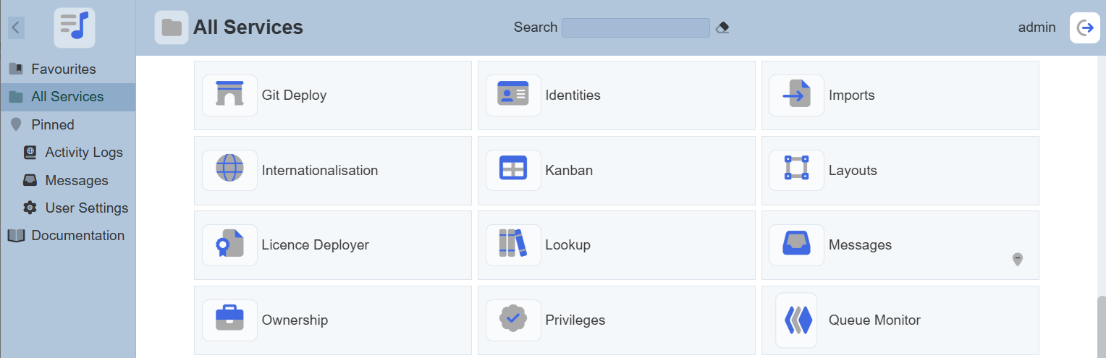
From the “Service Chooser” page, select the “Licence Deployer” from the right panel. If Ambience is initially installed and logged in for the first time, step 2 will appear directly.
-
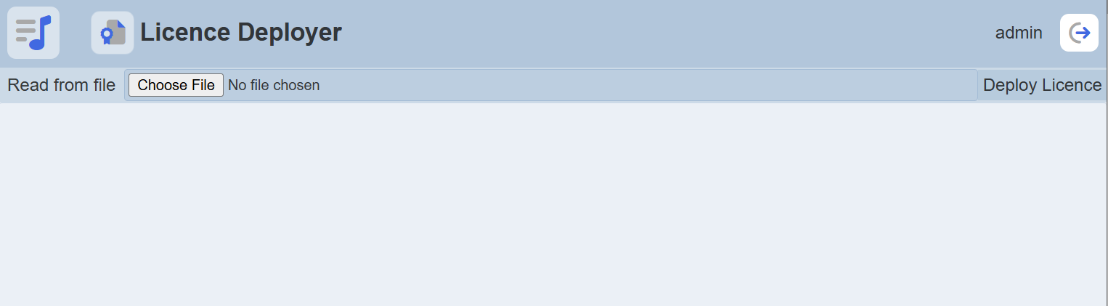
The “Licence Deployer” page will appear.
-
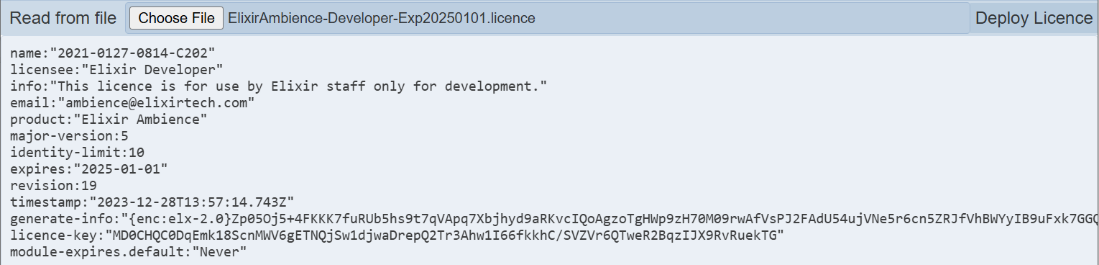
Click on the “Choose File” button and browse to the location of the licence file (*ElixirAmbience.licence*). The content of the licence file will appear in the editor.
-
If the content is correct, click on the “Deploy Licence” button at the upper right corner of the page.
-
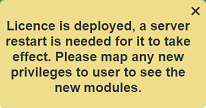
Upon successful upload, a message will appear.
-
After the licence has been deployed to the server. Restart the server for the licence to take effect.
-
Ensure to map any new privileges to the desired users to see the new modules.
To import a licence using Ambience command line interface:
-
Open a terminal window and navigate to the Ambience main folder, then navigate to the “bin” folder.
-
In the command line, key in the following command:
ambience-cli deploy-licence <path of ElixirAmbience.licence file> -
The command line window will display messages indicating the successful deployment.
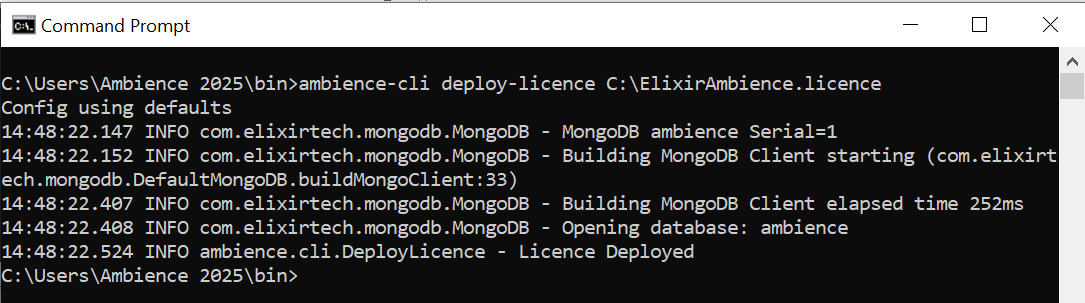
-
Restart the server to allow the new licence to take effect.