
Scheduler
The Scheduler module in Ambience allows you to set up jobs to automatically trigger the generation of these reports. The Scheduler module also allows you to view the status of the job, or sent an email to you, if it is being set up. The Scheduler module consists of three pages:
-
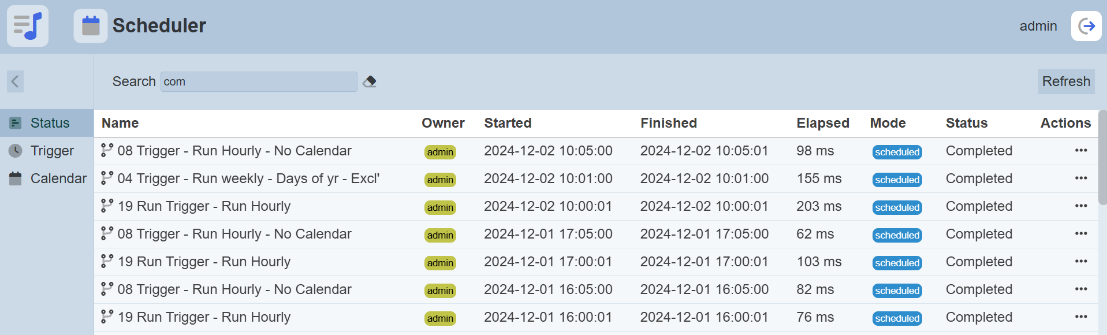
Status – Shows the status of the job triggers that have run or are currently running (shows last 200)
-
Trigger – Lists all jobs that are available for the owner
-
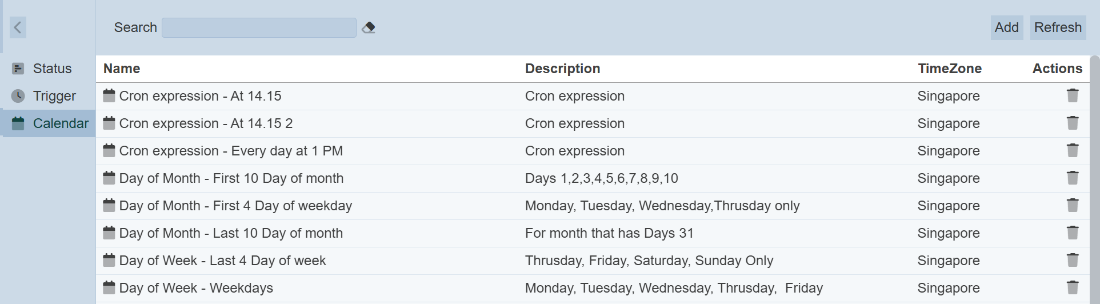
Calendar – Lists all constraints shared among the triggers
In the below example, a job trigger that occurs on the 10th of each month. The selected day must be a weekday and must not be a public holiday.
Calendar
The Calendar page in the Scheduler module allows you to set conditions or constraints in these calendars and apply them onto the trigger to determine when the job is to be run, such as which year, month, day and/or time, as well as the time zone. Do note that the calendar constraints may be shared and can be used by more than one trigger. Use the following steps to create a simple public holiday calendar:
-
Click on the
 “Elixir Ambience” logo and select the “All Services” option in the left panel, then select “Scheduler” in the right panel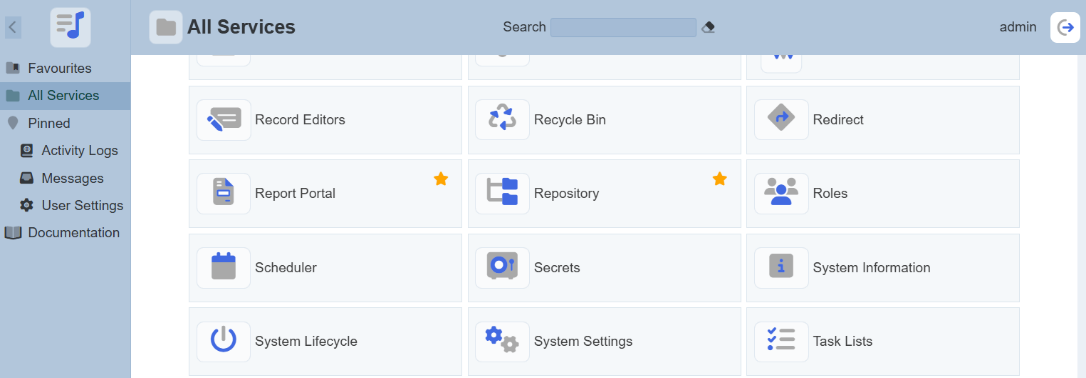
-
The “Scheduler” page will appear.
-
Click on the “Calendar” option in the left panel.
-
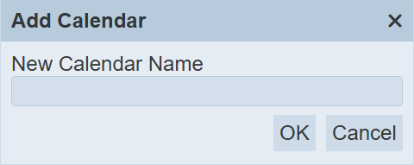
Click on the “Add” button on the upper right corner of the “Calendar” page. The “Add Calendar” dialog box will appear.
-
In the dialog box, key in a unique name .and click on the “OK” button to create the new calendar.
-
The new calendar is created and will appear in the management page.
-
To edit the calendar, click on the name of the calendar under the “Name” column.
-
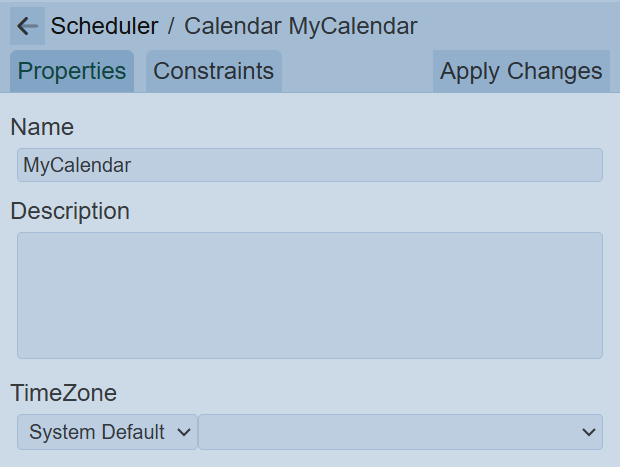
The “Scheduler / Calendar” panel will appear.
-
In the “Properties” tab, key in and select the following:
-
“Name” field – Edit the unique name of the calendar
-
“Description” field – Key in a brief description for the calendar (optional)
-
“TimeZone” field – Selects timezone from drop-down list (optional but recommended) (in this example, select “Singapore”)
-
-
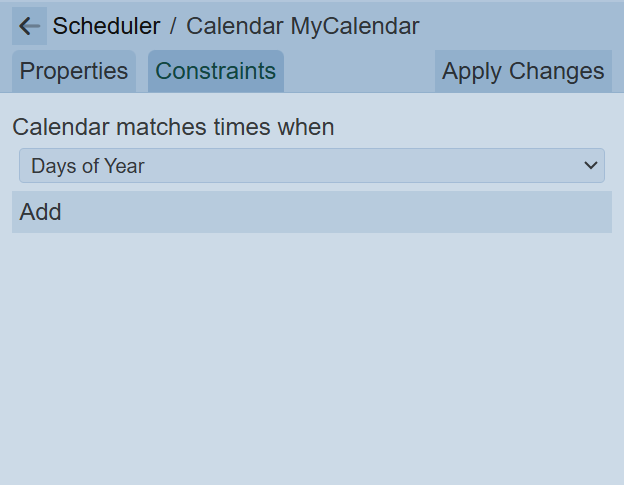
In the “Constraints” tab, select the following:
-
“Calendar matches times when” field – Selects “Day of Year”
-
The next field is dependent on the above field, one or more fields may appear
-
-
Click on the “Add” button in the “Constraints” tab to add a new date.
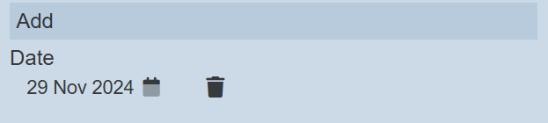
By default, the current date is selected.
-
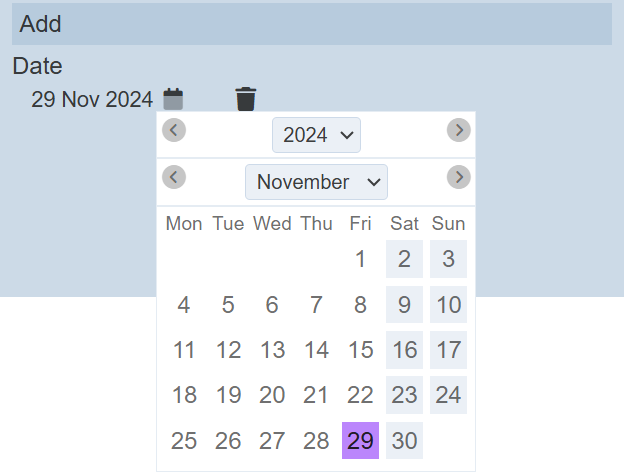
Click on the “Calendar” icon and select the correct date.
-
Repeat steps 6 and 7 until all public holidays are added.
-
Click on the “Apply Changes” button to save the changes.
-
Click on the
 “Previous” icon to return to the management page.
Repeat the above steps to create a weekday calendar that involves Monday to Friday only.
Trigger
A trigger defines the following:
-
Chain or chainset to run
-
Frequency or interval of the trigger
-
Calendars to decide when a trigger should fire at a particular month, date, day and/or time, as well as the time zone
Use the following steps to create a simple trigger:
-
Click on the “Trigger” option in the left panel to display the list of triggers.

-
Click on the “Add” button on the upper right corner of the page.
-
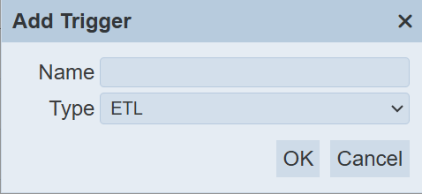
The “Add Trigger” dialog box will appear.
-
Key in a unique name for the trigger in the “Name” field and select the type of trigger for the “Type” field.
There are two types of triggers:
-
ETL – Job run by ETL chain/chainset
-
Report – Job run by defining report
-
-
The new trigger is created and will appear in the management page.
-
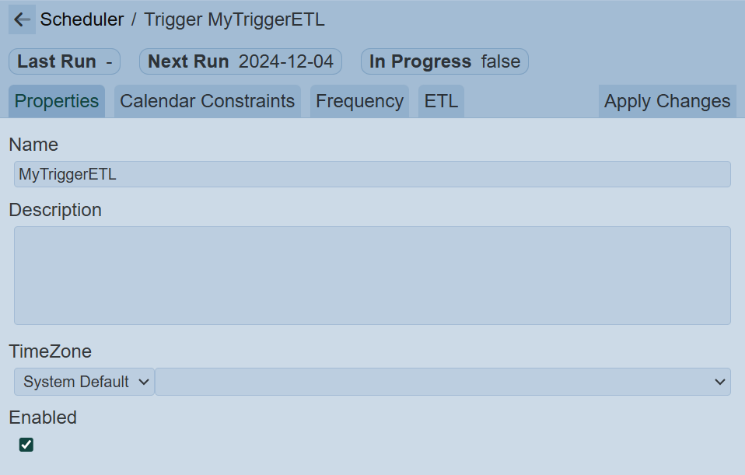
To edit the trigger, click on the name of trigger under the “Name” column. The “Scheduler / Trigger” panel will appear.
-
In the “Properties” tab, key in and select the following:
-
“Name” field – Key in a unique name for the calendar
-
“Description” field – Key in a brief description for the calendar (optional)
-
“TimeZone” field – Selects timezone from drop-down list (optional but recommended) (in this example, select “Singapore”)
-
“Enabled” field – Ensure this field is selected
-
-
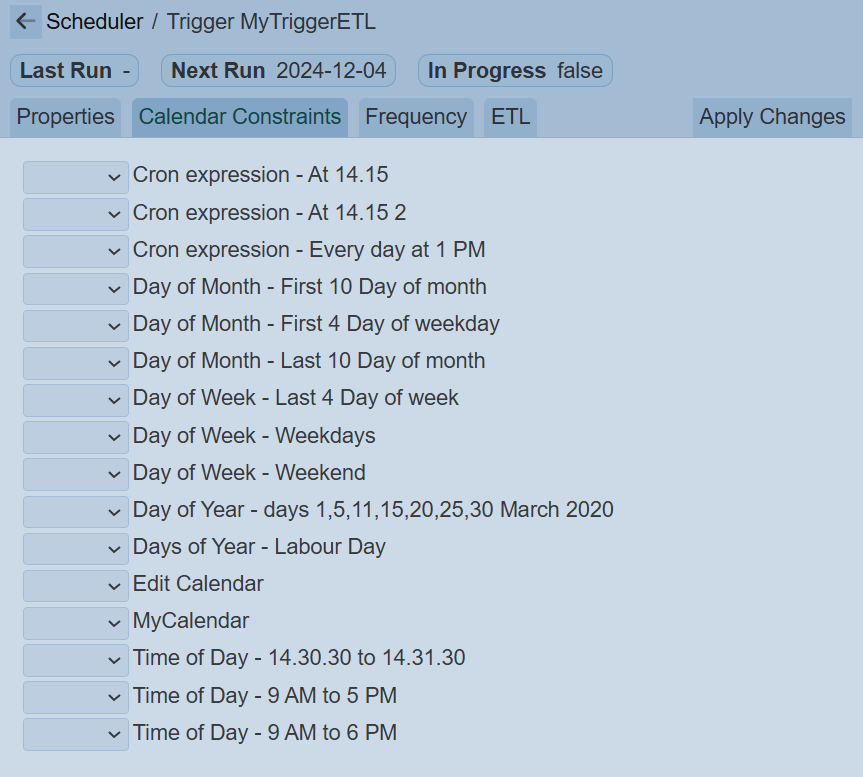
In the “Constraint” tab, select the following:
-
“Day of Week – Weekdays” – Selects “Include”
-
“Public Holiday Singapore” – Selects “Exclude”
This will ensure only weekday and non-public holidays will trigger the job.
-
-
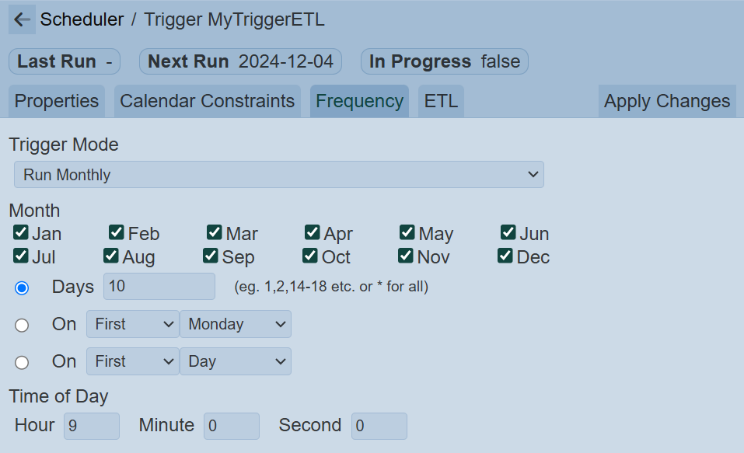
In the “Frequency” tab, key in and select the following:
-
“Trigger Mode” field – Selects “Run Monthly”
-
“Monthly” field – Selects all months
-
“Days” field – Selects this field and key in “10”
-
“Time of Day” field – Key in “9” in the “Hour” field
-
-
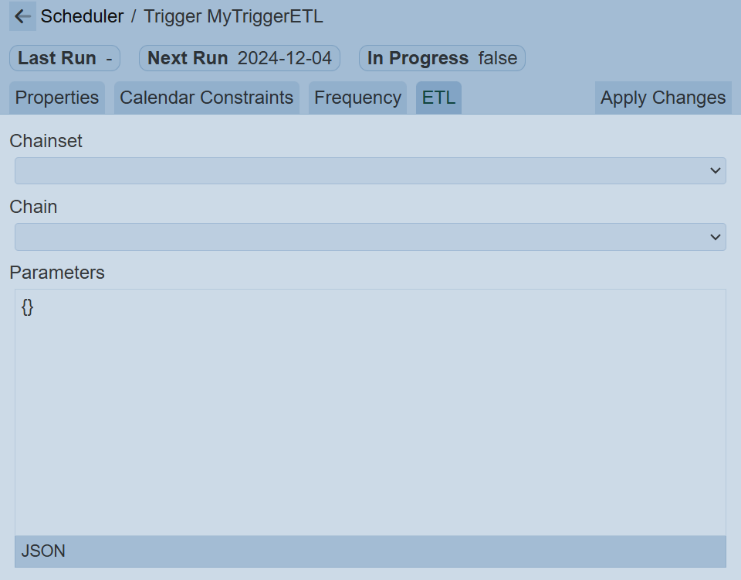
The last tab depends on which type of trigger is selected prior. In this case, ETL is selected.
-
In the “ETL” tab, select the scheduler ETL that was created in Section 2.5.3 Scheduler ETL.
-
Click on the “Apply Changes” button to save the changes.
-
Click on the
“Previous” icon to return to the management page