
Launching Ambience
Launch Ambience on Windows
Use the following steps to launch Ambience on Windows:
-
Launch MongoDB and use either one of the following methods:
a. From Windows Explorer/File Explorer, go to the “../MongoDB\Server/4.x/bin/” directory and double-click on mongod.exe.
b. For terminal window or command prompt for Windows, navigate to the “../MongoDB\Server/4.x/bin/” directory and execute the command “mongod.exe”.
-
Go to Ambience root directory, then to the “bin” folder.
-
To launch Ambience:
-
Double click on the “run-server.bat” file for Windows
-
Execute “run-server” in terminal window
-
-
For Windows, if this is the first time you launch Ambience, a dialog will appear.
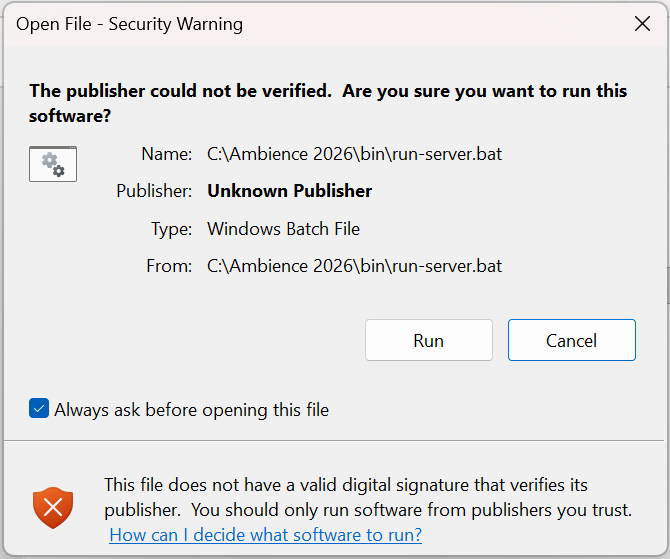
By default, the “Always ask before opening this file” is checked. If you wish to have this dialog box appear each time Ambience is launched, uncheck “Always ask before opening this file”.
Click on “Run” button to launch Ambience.
-
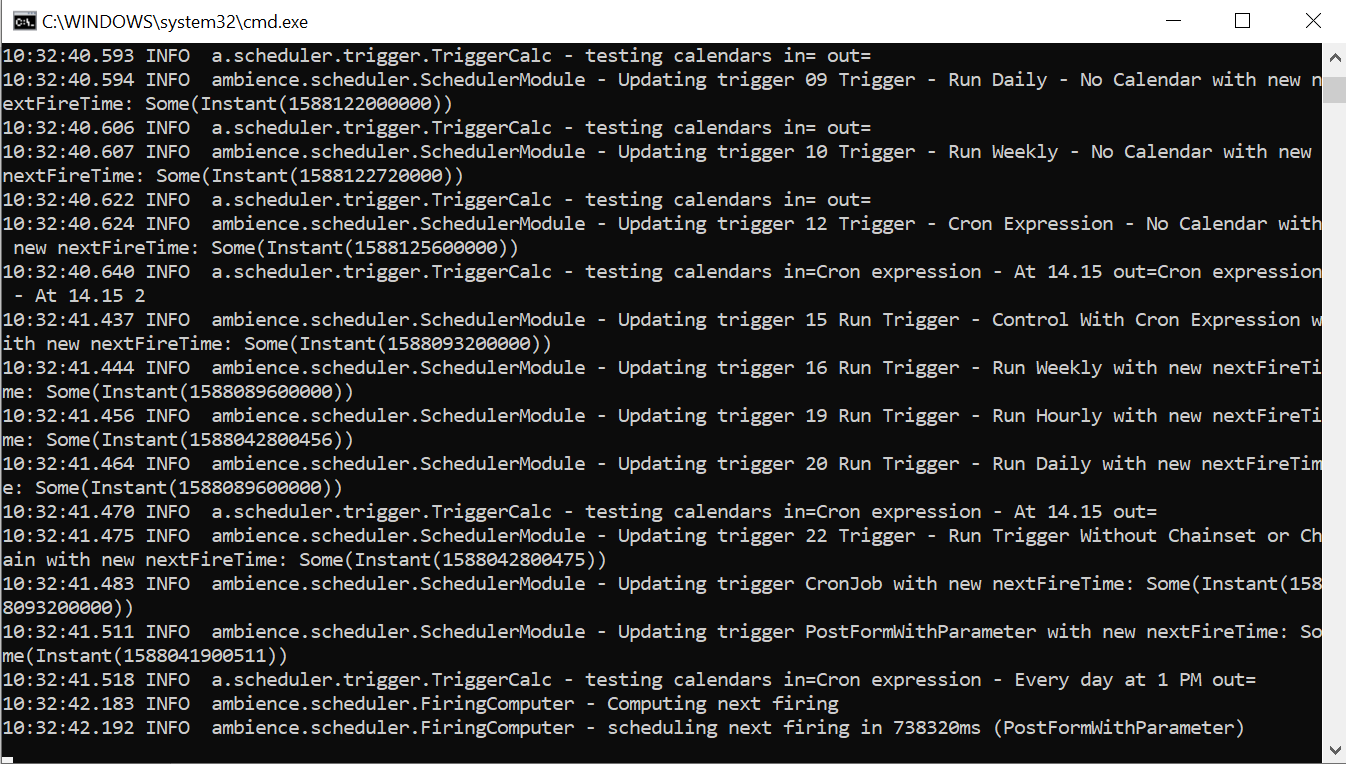
A command window will appear. DO NOT close this command window.
-
Check the command window for any error messages. After a few seconds, you will see a message “ambience.module.Launcher – Server listening on 0.0.0.0, 1740”.
-
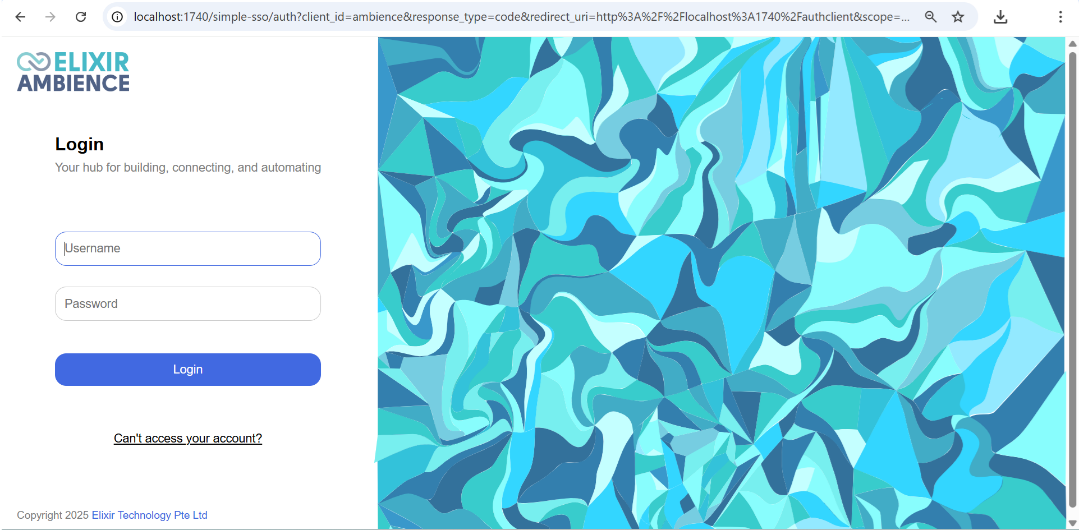
Open a browser, key in “localhost:1740” on the address bar and hit the “Enter” key.
-
The Elixir Ambience login page will appear.
Launch Ambience on Ubuntu
Use the following steps to launch Ambience on Ubuntu:
-
Launch MongoDB and use the following steps:
a. In the terminal window, execute the command to start MongoDB:
sudo systemctl start mongodb. If an error message is received, execute the commands:
    sudo systemctl daemon-reload

    sudo systemctl start mongod
c. To verify that MongoDB has started successfully, execute the command:
sudo systemctl status mongodd. To ensure that MongoDB will start following a system reboot, execute the command (optional):
sudo systemctl enable mongod -
In the terminal window, navigate to the Ambience root directory, then to the “bin” folder.
-
In the terminal window, execute the command to launch Ambience:
./run-server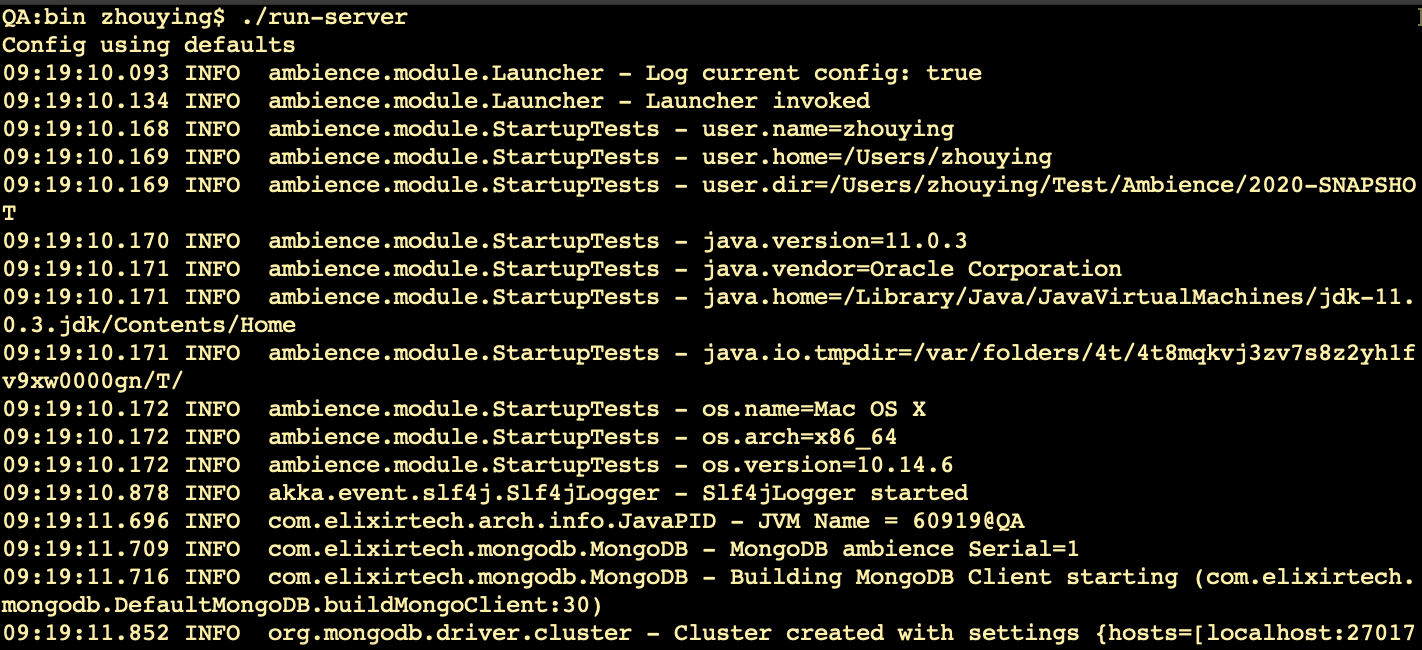
-
Open a browser, key in “localhost:1740” on the address bar and hit the “Enter” key.
-
The Elixir Ambience login page will appear.
Launch Ambience on macOS
Use the following steps to launch Ambience on macOS:
-
Launch MongoDB and use the following steps:
a. Open a terminal window, execute the command to run MongoDB as a service:
brew services start mongodb-community@4.xb. To verify that MongoDB has started successfully, execute the command:
ps aux | grep -v grep | grep mongod -
In the terminal window, navigate to the Ambience root directory, then to the “bin” folder.
-
In the terminal window, execute the command
./run-server -
Open a browser, key in “localhost:1740” on the address bar and hit the “Enter” key.
-
The Elixir Ambience login page will appear.
Login
By default, the Ambience has a super user “admin”.
Use the following steps to log into Ambience:
-
After launching Ambience, the log-in page will appear.
-
To log into Ambience, key in the following:
-
Username: admin
-
Password: sa
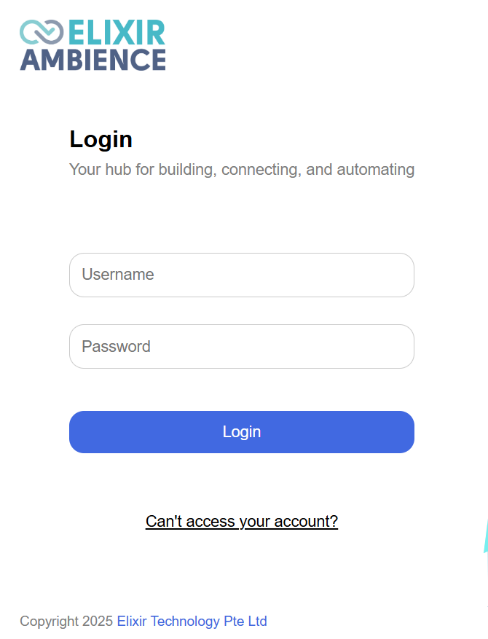
If 2FA has not been enabled, the 2FA Code will not appear after the log-in page. Refer to the Admin Guide on how to enable 2FA.
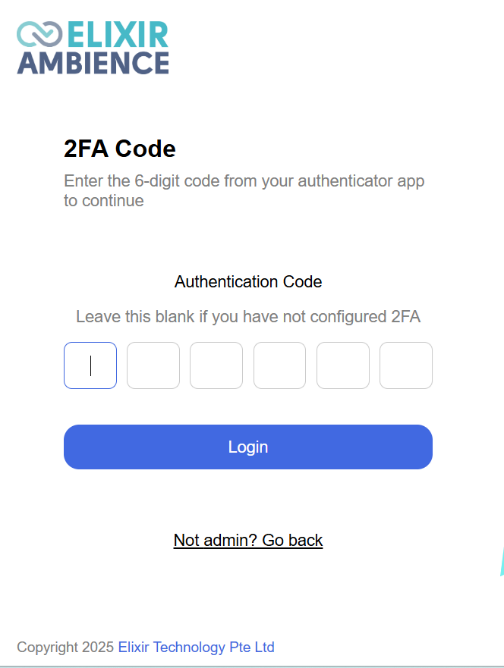
If the user has not set up the 2FA yet, leaves the 2FA Code blank. If the user has forgotten the password, click on the “Can’t access your account?” link at the bottom right. A dialog box will appear, prompting the user to enter the user’s username.
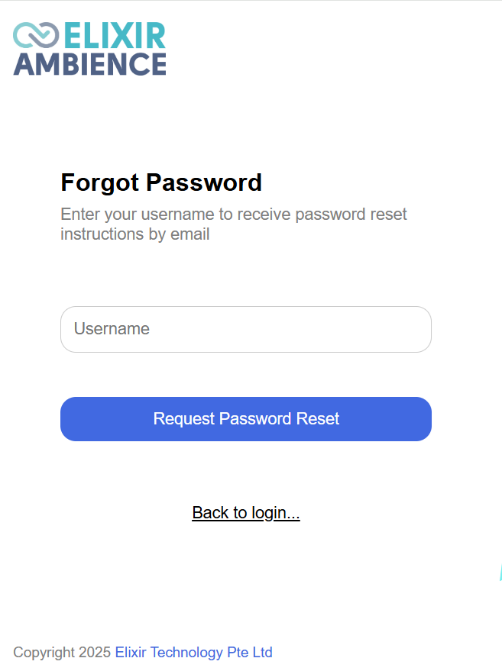
Click on the “Request Password Reset” button and the new password will be sent to the user’s email along with a notification. To abort this action, click on the “Back to login…” link at the bottom right.

-
-
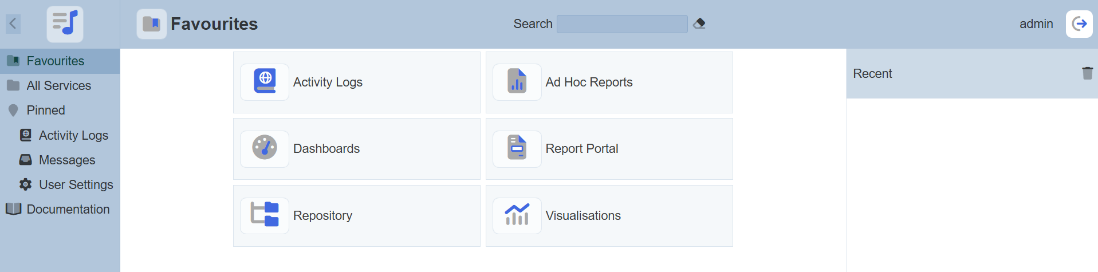
Click on the “Login” button. Upon login, the “Service Chooser” screen will appear with the “Favourites” option selected, showing a list of favourite modules in the right panel.
-
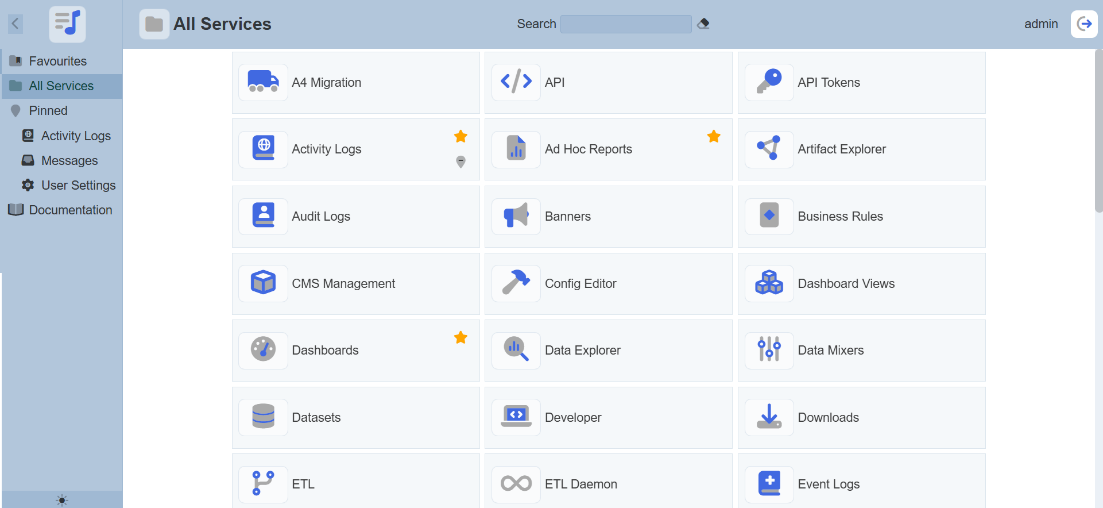
Select “All Services” option in the left panel to view all the available modules.
-
If the licence in Ambience is the minimal licence, the “All Services” option will display the set of modules that are allowed by the minimal licence. To be able to use more modules, a new licence will be required. Contact our representatives for the new licence.
Logout
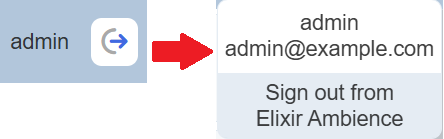
To log out of Ambience, click on the “Profile” icon on the upper right corner of the page. A dialog box will appear. Click on the “Sign out from Ambience Suite” portion to log out of Ambience.
Ambience Interface
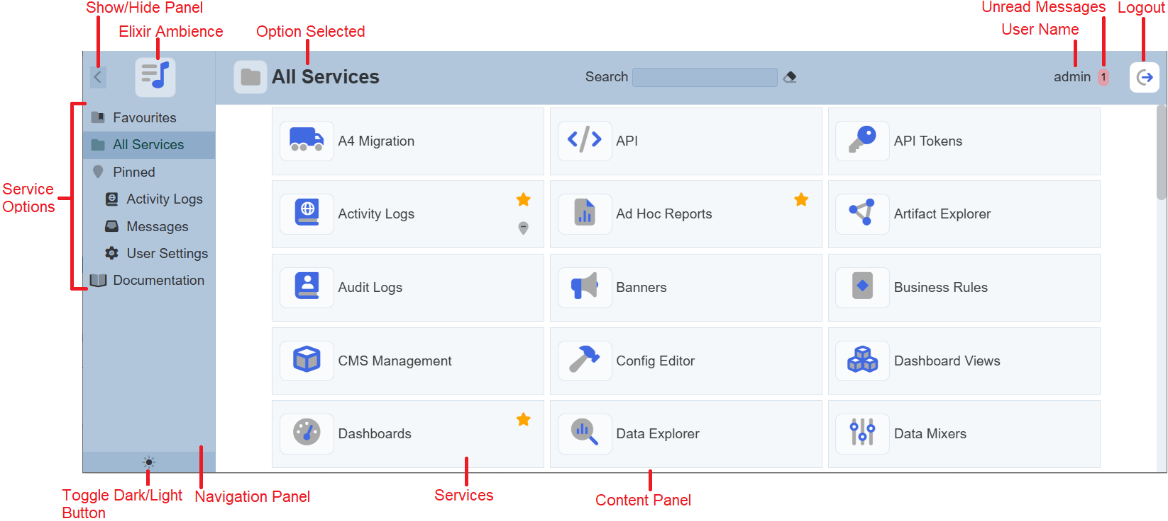
This section briefly describes the interface of the Ambience “Service Chooser” page. Upon login into Ambience, you will see the “Service Chooser” page. This page will display all the modules that are currently available.
| Component | Description |
|---|---|
| Navigation Panel | Consists of three parts: - At the top – Show/Hide button and Elixir Ambience logo - At the centre – List of service options - At the bottom – Dark/Light Mode button |
| Show/Hide button | Expand or collapse the navigation panel. By default, the navigation panel is shown (expanded). If collapsed, the navigation panel shows only the icons of the service options.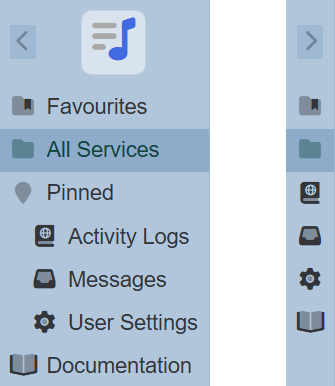 |
| Elixir Ambience Logo | The Elixir Ambience logo allows user to return to the Favourites option from any page the user has navigated to. |
| Service Options | Any option selected in this panel will have its content displayed in the Content Panel. |
| Toggle Dark/Light button | Allows user to toggle between light and dark mode. By default, light mode is used.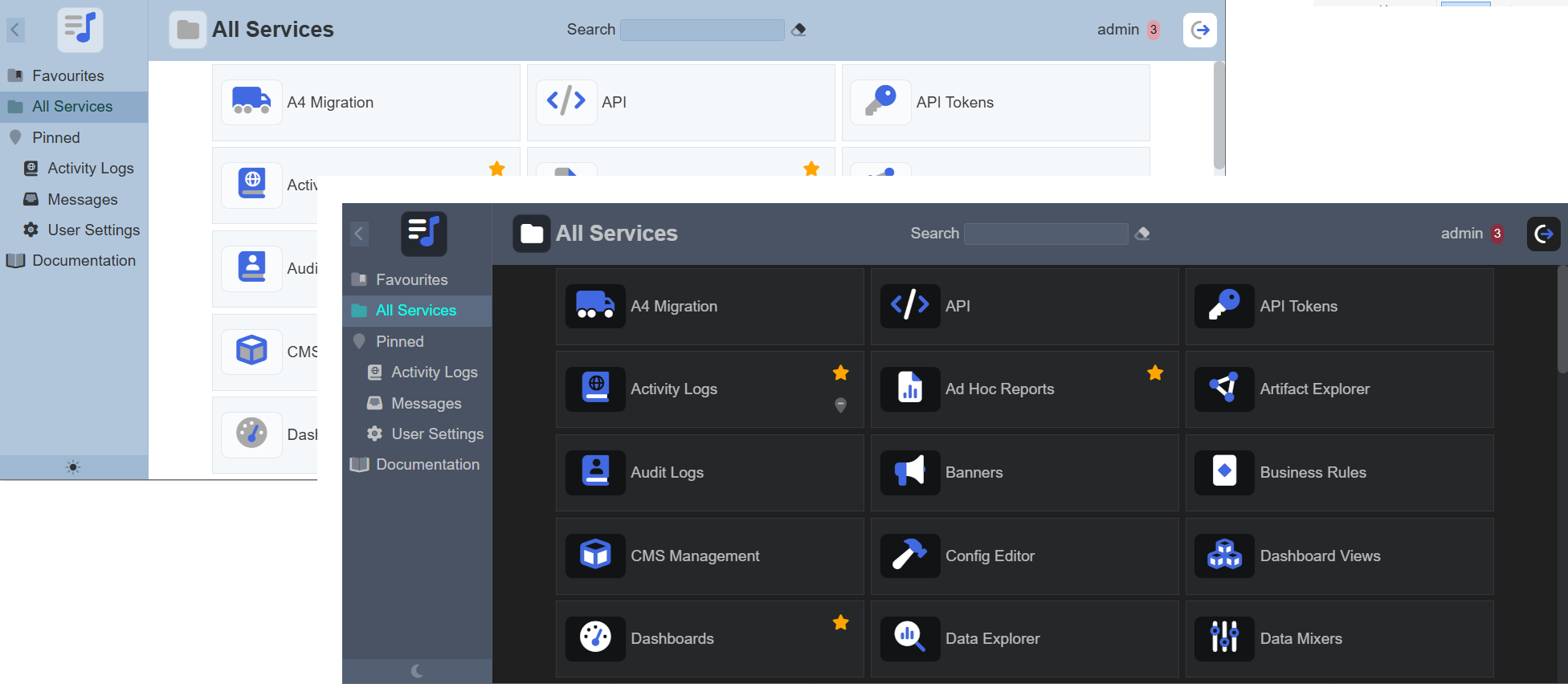 |
| Content Panel | Displays the content of the option selected in the Navigation Panel or any other page navigated to. When the “All Services” option is selected, the services available to the user will be displayed. |
| Logout | When clicked upon, a pop-up will appear. Displaying the user’s profile at the top and the logout option below. Click on the “Sign out from Elixir Ambience” to log out of Ambience. |